
Building your first MCP server in ASP.NET Core
Artificial Intelligence is no longer limited to answering questions. It can now interact with applications, retrieve data, and perform real tasks. In fact, tons of applications are already doing this. But for AI assistants to communicate with your software, they need a common language. The standard communication is Model Context Protocol (MCP). As the name suggests, it allows AI clients, such as ChatGPT, Claude, and Visual Studio Code, to discover and invoke tools exposed by your application. Instead of building custom integrations for every AI platform, you expose your application's capabilities once, and any MCP-compatible client can use them. In today's post, I will share how to build our first MCP server in ASP.NET Core, create a small book catalog, expose several MCP tools, and test them.
What is Model Context Protocol (MCP)?
Model Context Protocol (MCP) is an open standard created by Anthropic that provides a standard way for AI models to communicate with external tools and applications. MCP standardizes communication between AI clients and applications. Every MCP-compatible client speaks the same protocol. You implement your tools once, and any MCP client can discover and use them. Without MCP, each model can have different request formats, authentication methods, and tool descriptions.
Designing an MCP server in ASP.NET Core API
Let's jump right in and create our first MCP server.
Step 1: Create project
dotnet new webapi -n MCPPlaygroundStep 2: Install MCP package
dotnet add package ModelContextProtocol.AspNetCoreThe package enables the project to act as an MCP server.
Step 3: Create model
namespace MCPPlayground.Models;
public record Book(
    int Id,
    string Title,
    string Author,
    int Year,
    bool IsAvailable
);
To keep it simple, I am using a value-type record. But for a production-grade application, know your requirements.
Step 4: Add a repository
Let's add a repository with in-memory data.
using MCPPlayground.Models;

namespace MCPPlayground.Data;

public class BookRepo
{
    private readonly List<Book> _books =
    [
        new(1, "Clean Code", "Robert C. Martin", 2008, true),
        new(2, "The Pragmatic Programmer", "Andrew Hunt", 1999, false),
        new(3, "Design Patterns", "Erich Gamma", 1994, true),
        new(4, "Domain-Driven Design", "Eric Evans", 2003, true),
        new(5, "Refactoring", "Martin Fowler", 2018, false)
    ];

    public List<Book> GetAll() => _books;

    public Book? GetById(int id)
        => _books.FirstOrDefault(x => x.Id == id);

    public List<Book> Search(string keyword)
        => _books
            .Where(x =>
                x.Title.Contains(keyword, StringComparison.OrdinalIgnoreCase)
                    || x.Author.Contains(keyword, StringComparison.OrdinalIgnoreCase))
            .ToList();
}
I am exposing 3 methods from the repo. Don't forget to add dependency injection in Program.cs:
builder.Services.AddSingleton<BookRepo>();Step 5: Create MCP tools
using MCPPlayground.Data;
using MCPPlayground.Models;
using ModelContextProtocol.Server;

namespace MCPPlayground.Tools;

[McpServerToolType]
public class BookTools(BookRepo repository)
{
    [McpServerTool]
    public IEnumerable<Book> GetAllBooks()
    {
        return repository.GetAll();
    }

    [McpServerTool]
    public Book? GetBookById(int id)
    {
        return repository.GetById(id);
    }

    [McpServerTool]
    public IEnumerable<Book> SearchBooks(string keyword)
    {
        return repository.Search(keyword);
    }
}
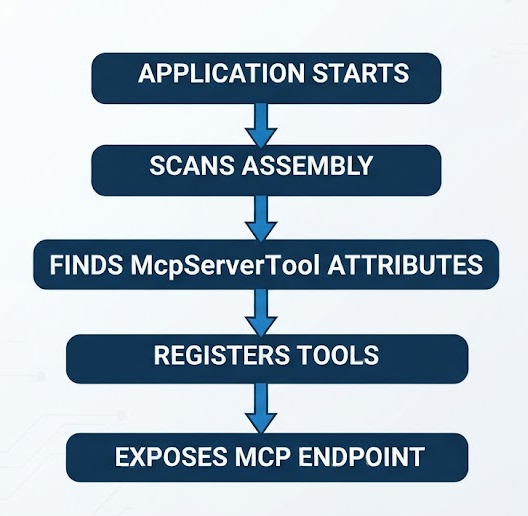
[McpServerToolType] marks the class as containing MCP tools. While [McpServerTool] marks a method that AI clients can invoke. Any method parameters automatically become tool inputs. C# method names are converted to MCP names like get_all_books if no custom name is specified for [McpServerTool].
Step 6: Setup MCP server configuration
Add MCP configuration in Program.cs:
builder.Services
    .AddMcpServer()
    .WithHttpTransport()
    .WithToolsFromAssembly();
Use the MapMcp method to map the /mcp URL which is the endpoint the AI clients are going to communicate with:
app.MapMcp("/mcp");The final look of the file is;
using MCPPlayground.Data;

var builder = WebApplication.CreateBuilder(args);

builder.Services
    .AddMcpServer()
    .WithHttpTransport()
    .WithToolsFromAssembly();

builder.Services.AddOpenApi();

builder.Services.AddSingleton<BookRepo>();

var app = builder.Build();

if (app.Environment.IsDevelopment())
{
    app.MapOpenApi();
}

app.UseHttpsRedirection();
app.MapMcp("/mcp");
app.Run();
Step 7: Run the project
dotnet runThe project is running and listening at http://localhost:5082/mcp
Unlike APIs, where you manually call REST endpoints, the MCP server allows AI models to discover and call the tools. I will use the MCP Inspector to test, which will automatically discover available tools from the server. Simply select a tool, provide its arguments, and execute it. This mirrors how AI assistants such as Cursor or Claude discover and invoke an application's capabilities through Model Context Protocol.
Step 8: Install MCP inspector
For the MCP inspector, you need to have Node.js. Check if node and npm is installed by running:
node -v
npm -v
If not already installed, go to the official website: https://nodejs.org. Download the LTS (Long Term Support) version. Once the download completes:
- Run the installer.
- Click Next until installation completes.
- Keep "Add to PATH" checked (default).
- Finish the installation.
Verify the installation:
node -v
npm -v
Then run the following in a new terminal:
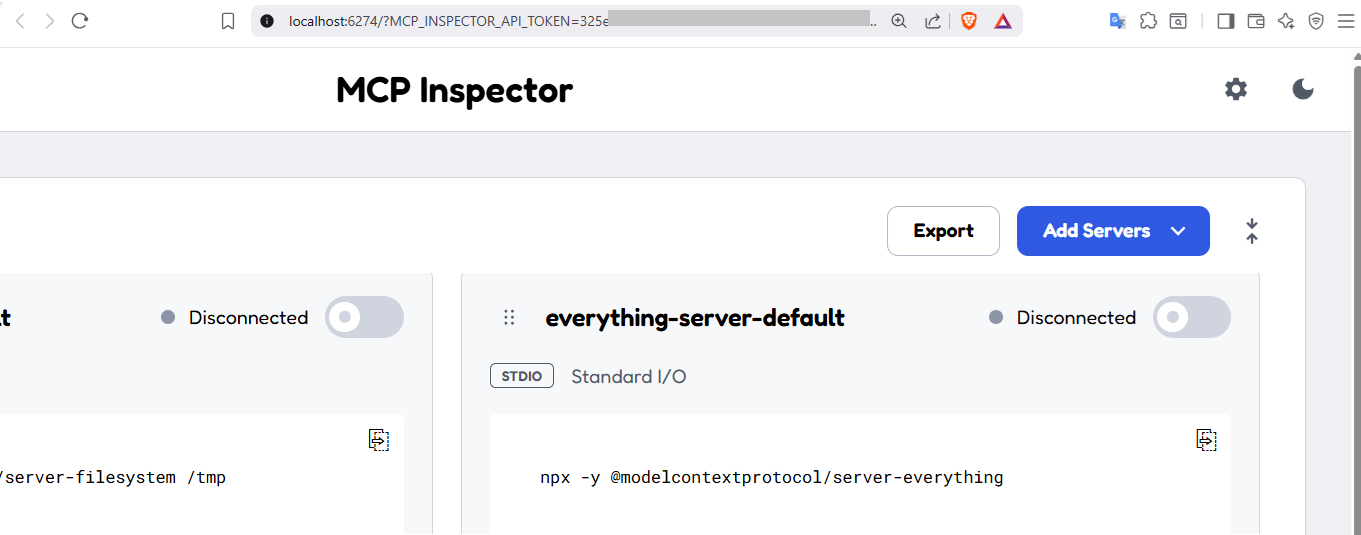
npx @modelcontextprotocol/inspector@latestThis will install and run the latest version of the inspector:

When the inspector is running, the browser opens up the UI:
Step 9: Test the MCP server
Add a new server for our application:
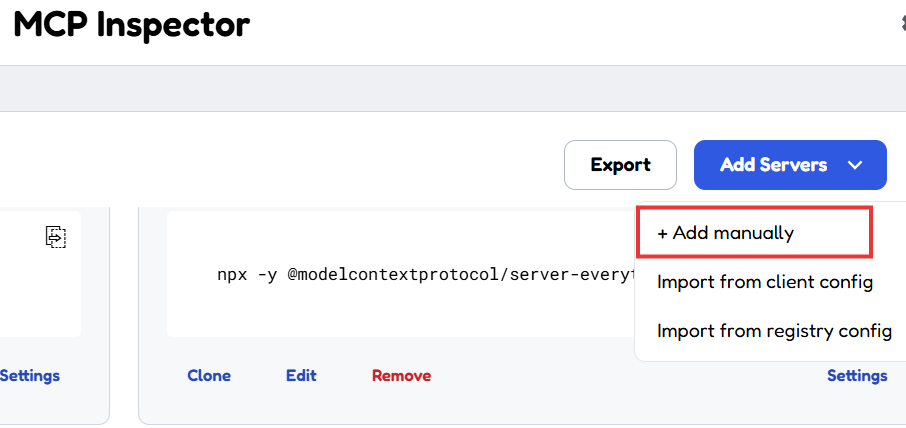
You can use the following configuration for the server:
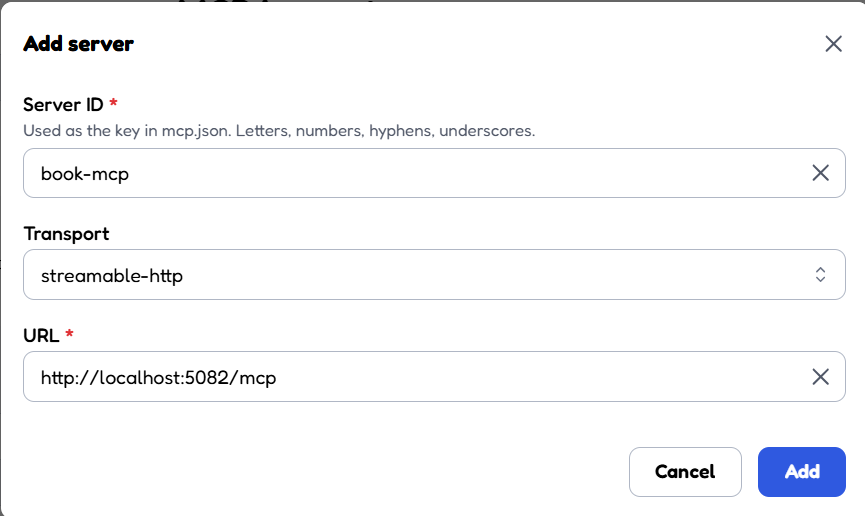
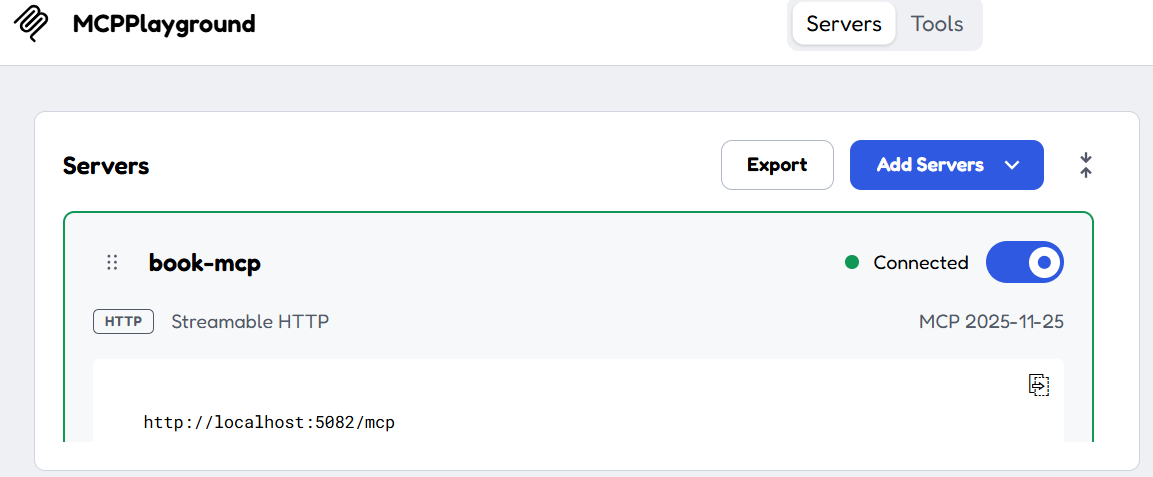
Make sure to turn the connected toggle button on:
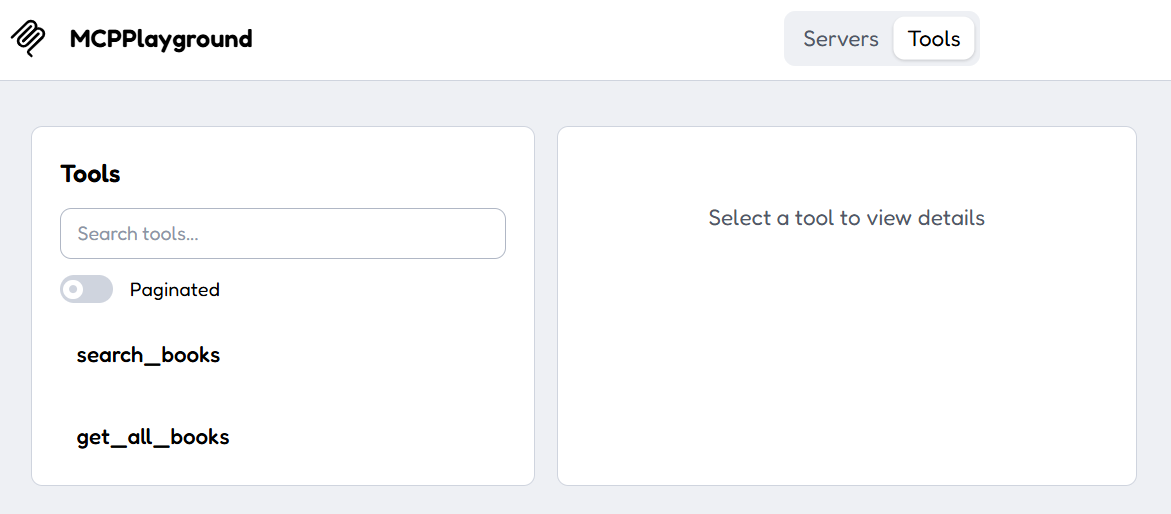
All the tools I designed will be visible in the tools window:
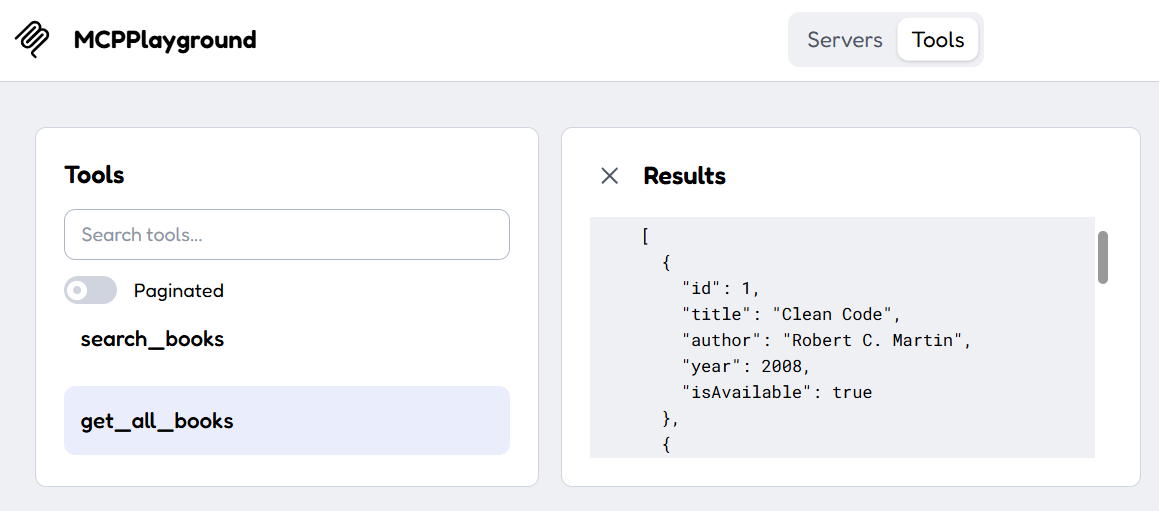
Calling the get_all_books tool:
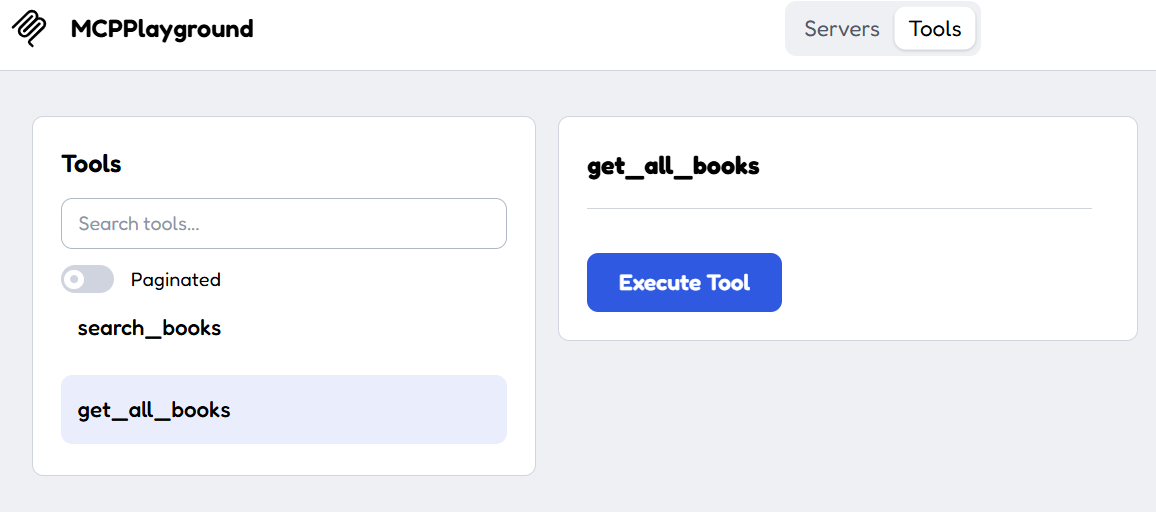
Will show the in-memory data from the repository:
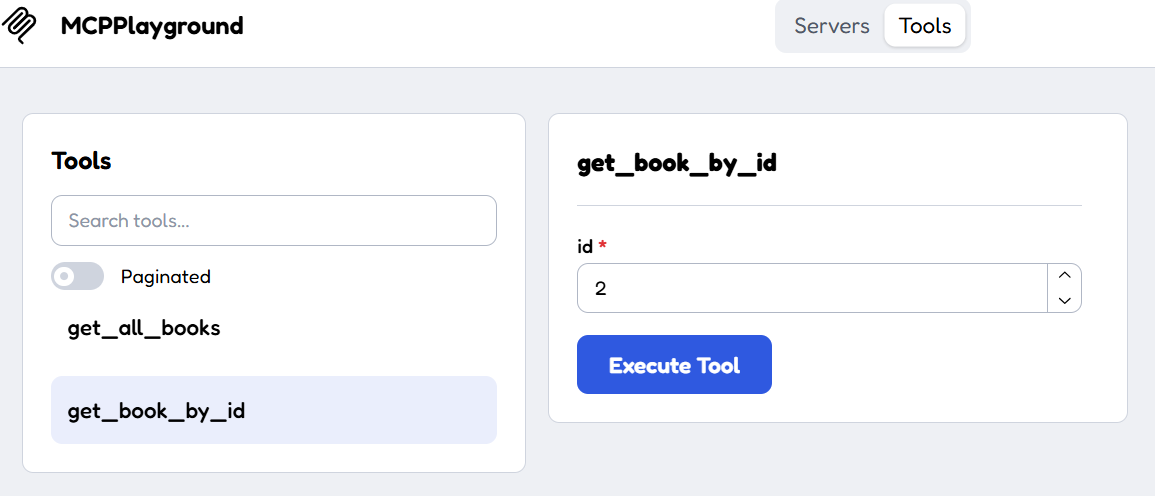
Another tool get_book_by_id:
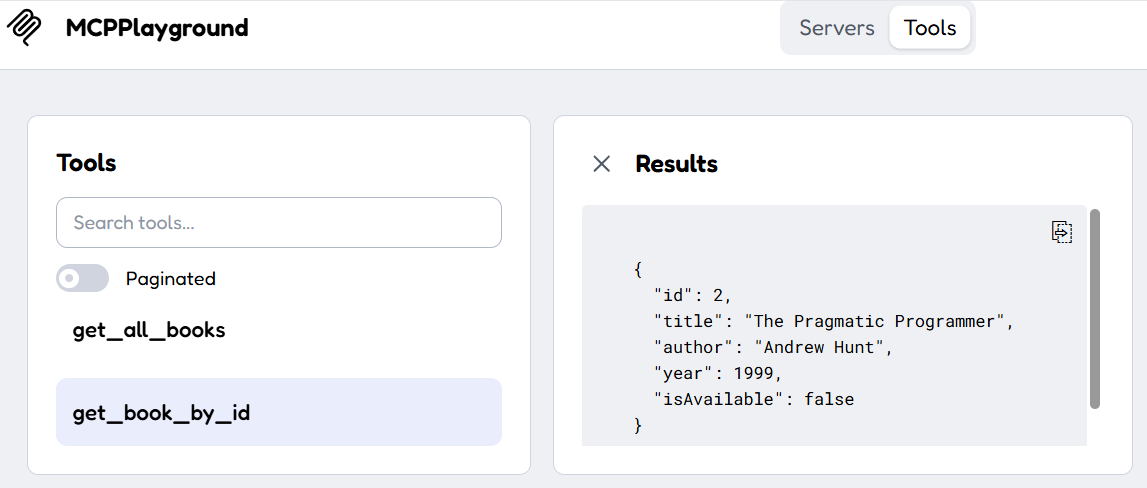
Will show a single book from the repository:
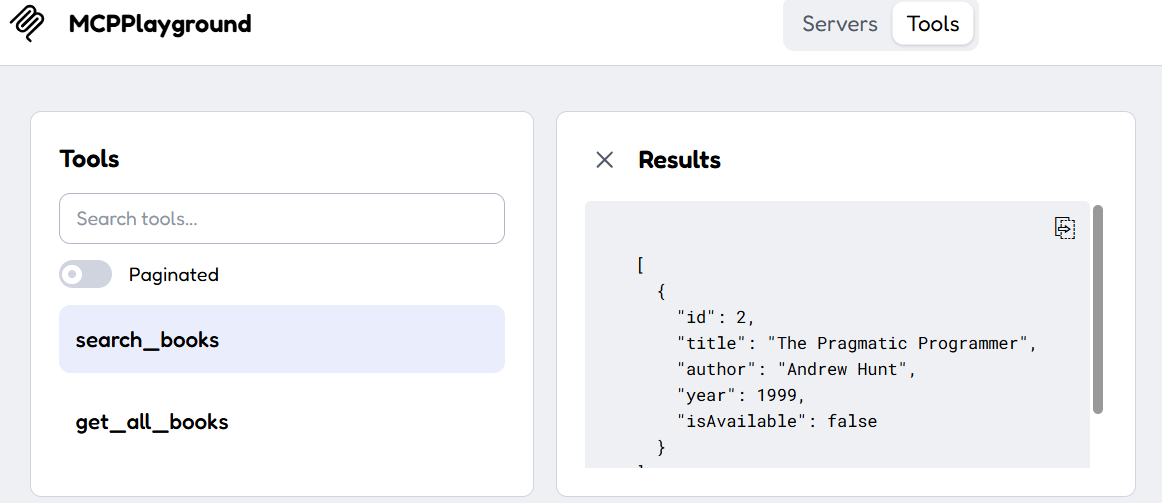
We can also search book sby the keyword parameter:
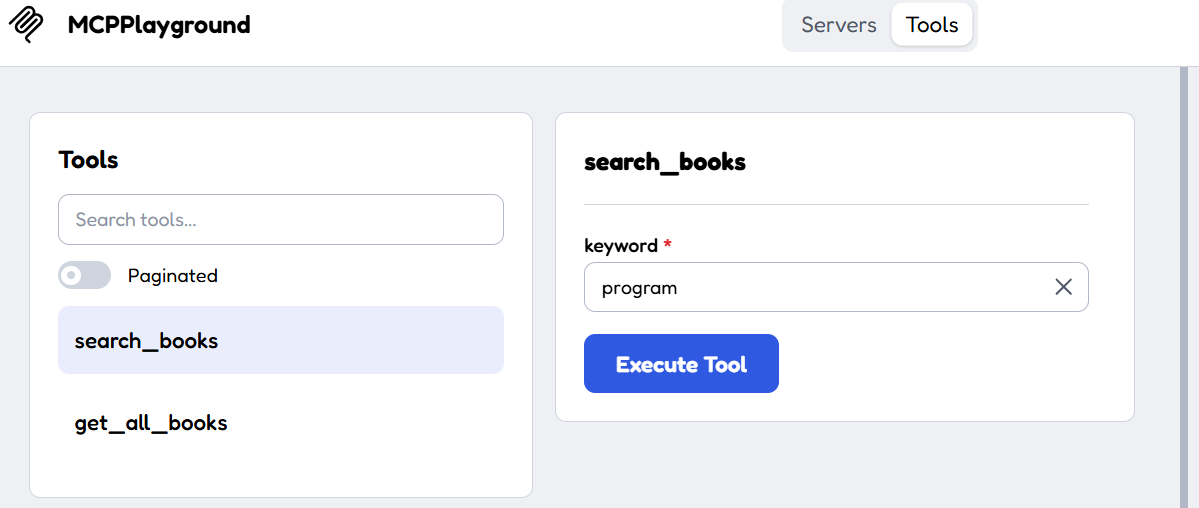
The data is fetched successfully:
Step 10: Add descriptions to the tools
To better define each tool for AI model integration, it is recommended to add descriptions:
using System.ComponentModel;
using MCPPlayground.Data;
using MCPPlayground.Models;
using ModelContextProtocol.Server;

namespace MCPPlayground.Tools;

[McpServerToolType]
public class BookTools(BookRepo repository)
{
    [McpServerTool]
    [Description("Returns all books available in the library.")]
    public IEnumerable<Book> GetAllBooks()
    {
        return repository.GetAll();
    }

    [McpServerTool]
    [Description("Returns a single book by its unique identifier.")]
    public Book? GetBookById(
        [Description("The unique ID of the book.")] int id)
    {
        return repository.GetById(id);
    }

    [McpServerTool]
    [Description("Searches books by title or author.")]
    public IEnumerable<Book> SearchBooks(
        [Description("A keyword to search in the book title or author name.")] string keyword)
    {
        return repository.Search(keyword);
    }
}
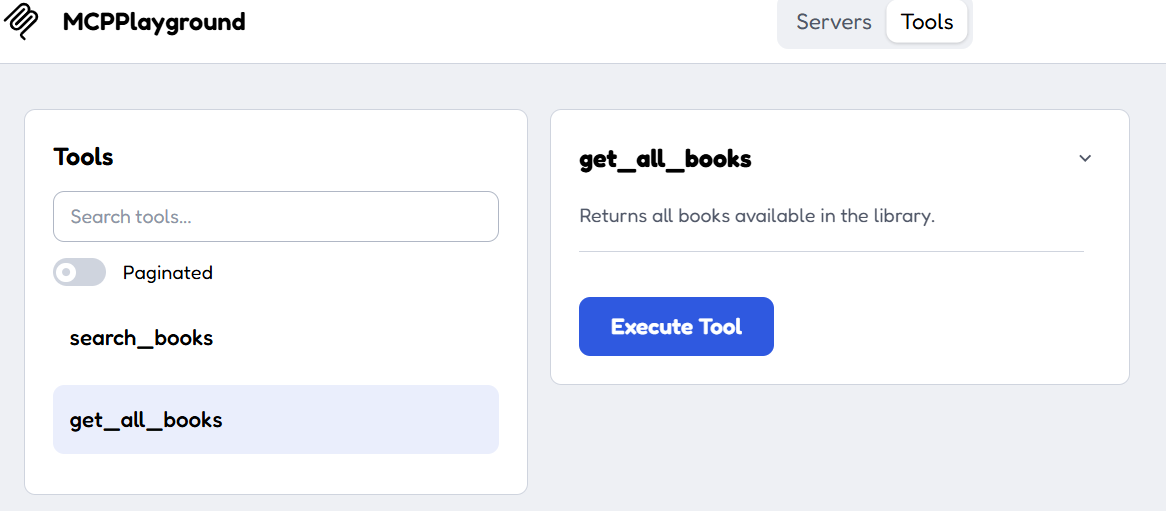
The descriptions are visible in the inspector:
That's it. We have now developed our first MCP server using ASP.NET Core and the ModelContextProtocol.AspNetCore NuGet package. In this post, I focused on testing the tools through the inspector. But in real life, your tools will be called from an AI client. How you set up an MCP server in your favorite client depends on what client you use. As an example, you would use the following command for Claude:
claude mcp add --transport http book-mcp http://localhost:5082/mcpConclusion
As AI assistants become part of everyday development, one challenge quickly appears: how should an AI securely and consistently interact with your applications? In this post, I tackled this question by guiding you on how to design an MCP server in ASP.NET Core, which is surprisingly straightforward. With just a few configuration lines and a couple of attributes, you can expose your application's capabilities as AI-callable tools.
As applications adopt more AI, learning how to build MCP servers will become an increasingly valuable skill for .NET developers. Whether you're integrating AI into internal business systems or creating intelligent developer tools, MCP serves as a standardized and extensible foundation for connecting language models to real-world functionality. Something we are already fully utilizing on elmah.io's MCP server.
Code: https://github.com/elmahio-blog/MCPPlayground.git
elmah.io: Error logging and Uptime Monitoring for your web apps
This blog post is brought to you by elmah.io. elmah.io is error logging, uptime monitoring, deployment tracking, and service heartbeats for your .NET and JavaScript applications. Stop relying on your users to notify you when something is wrong or dig through hundreds of megabytes of log files spread across servers. With elmah.io, we store all of your log messages, notify you through popular channels like email, Slack, and Microsoft Teams, and help you fix errors fast.

See how we can help you monitor your website for crashes Monitor your website