
Solving bugs with elmah.io and Claude Code - a real-life example
I spend most of my day in Claude Code these days. Most of my development processes changed after having access to my own personal assistant. In this post, I'll show you a real-life example of how bug fixes are often done on elmah.io now. I hope it will inspire someone to optimize their workflow and get even more out of their elmah.io subscription.
Monitoring elmah.io itself and fixing bugs when errors occur are a large part of keeping elmah.io's quality high. We use various ways to monitor that everything is working as intended, the big one being elmah.io itself. We receive new errors from the various websites and services through elmah.io and a shared Slack channel. In the old days, fixing errors was mostly a manual task, where only the build and publish part were fully automated. We would look up the error manually through the elmah.io UI and inspect the various pieces of information, trying to understand what was going wrong. Alongside the Source Code window in elmah.io, we would have Visual Studio open with the solution containing the failing code.
With the release of the elmah.io MCP server, this changed towards a much more automated approach. If you haven't run into MCP yet, the short version is that it's a protocol that lets AI tools like Claude Code call out to external services in a structured, secure way. Instead of me copy-pasting a stack trace into a chat window and asking "what does this mean", Claude Code can now go and look at the actual error itself, plus the uptime checks, heartbeats, and deployments around it. It's less "ask an AI about your errors" and more "give your AI tool the same access to elmah.io that you have". Let's try to set it up.
Connecting Claude Code to elmah.io
You'll need Claude Code installed and an elmah.io account, and everything happens from the terminal, so there's no config file to hand-edit and no API key to generate and paste in somewhere. API keys are also supported on the MCP server, but for this post, we'll use the UI to sign in.
First, register the MCP server:
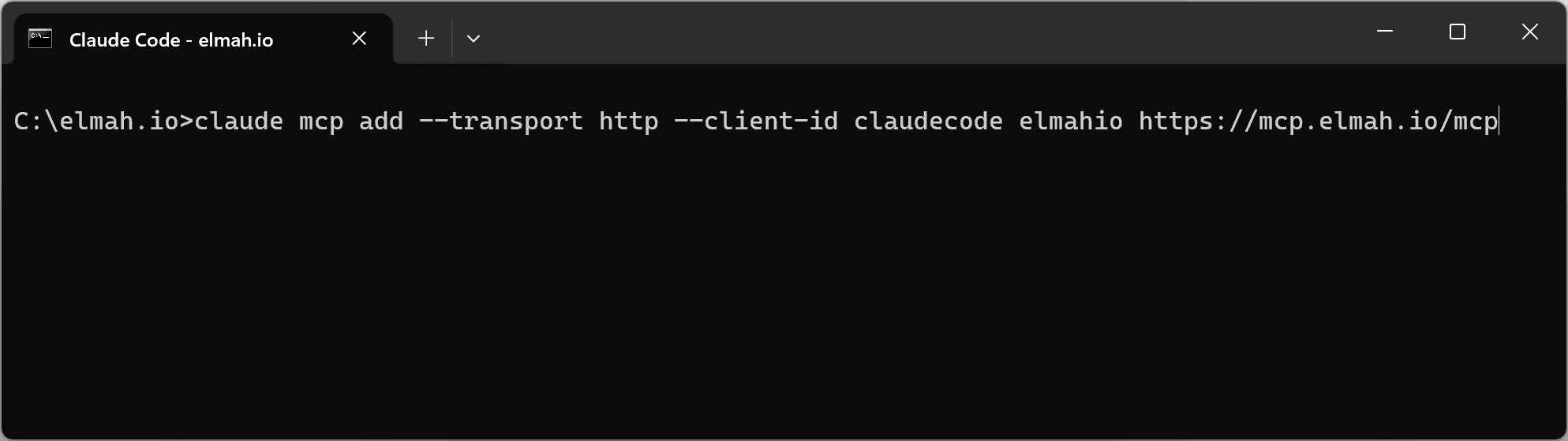
This just tells Claude Code that a server called elmahio exists and where to find it. It doesn't authenticate anything yet. To do that, launch Claude Code and run /mcp:
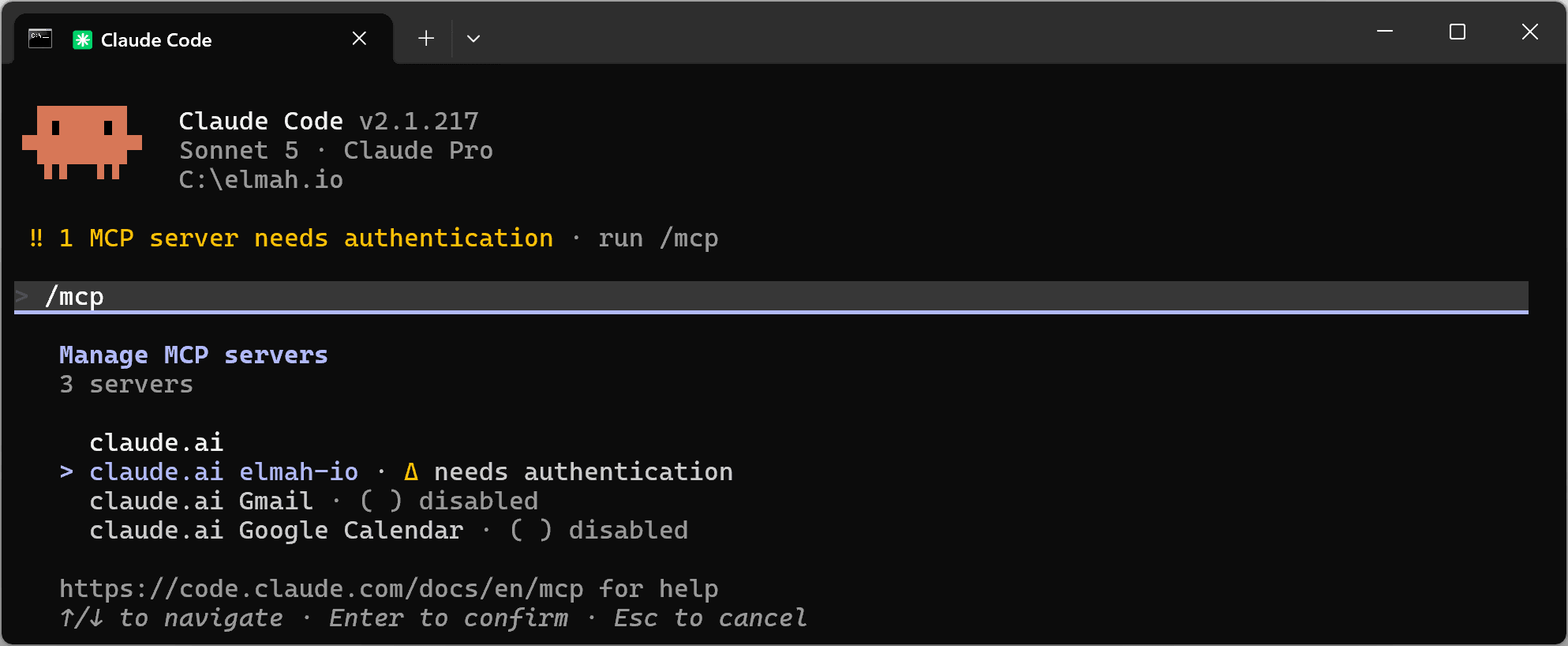
You'll see a list of configured MCP servers, and elmahio should show up with a status of "needs authentication". Select it and click Authenticate, which opens a browser window with a normal OAuth login screen:
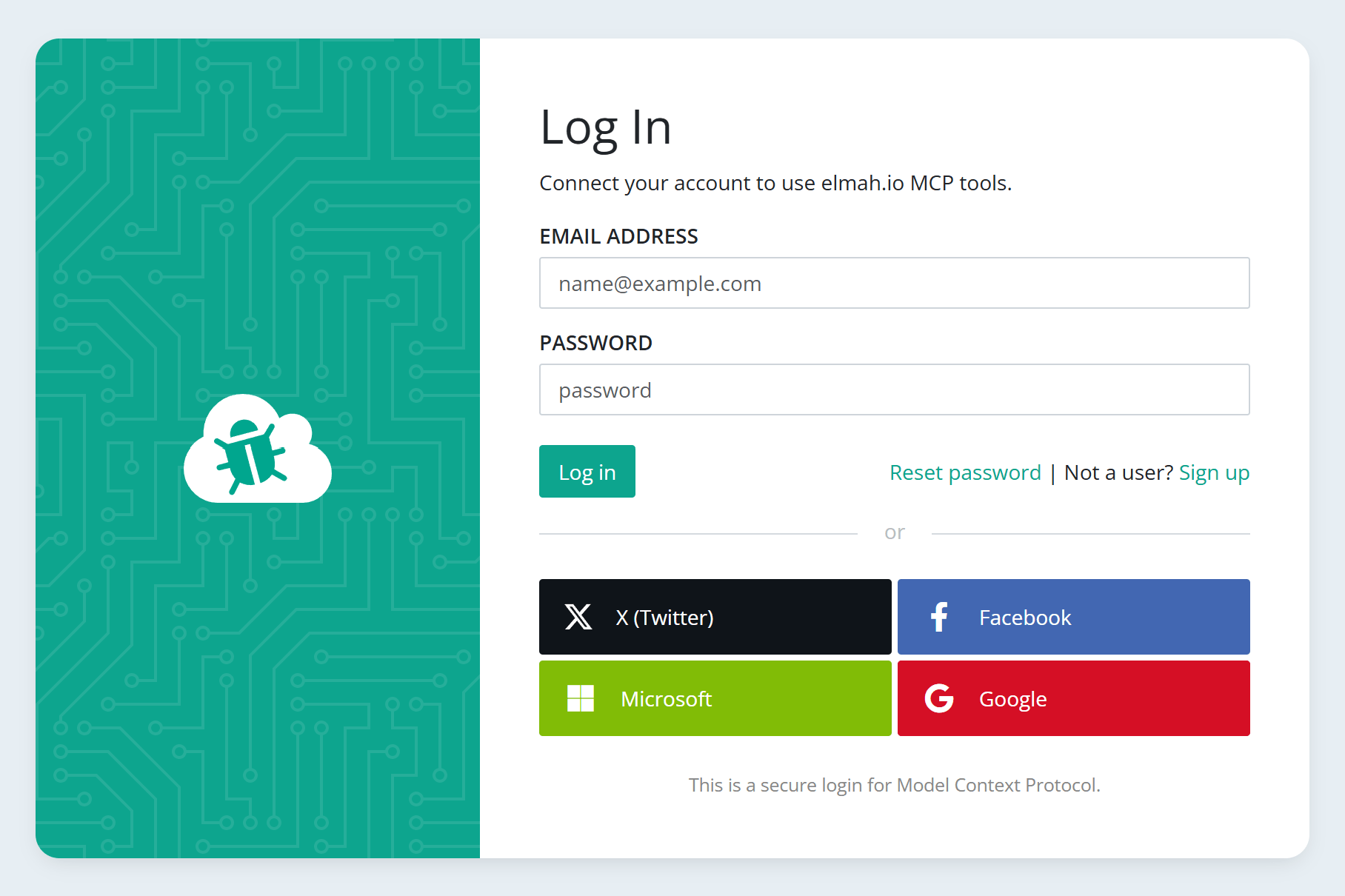
Sign in with your elmah.io account like you would on app.elmah.io, approve the request, and you're done. Claude Code doesn't see your password, just a token scoped to your account.
To make sure it actually worked, run /mcp list inside Claude Code:
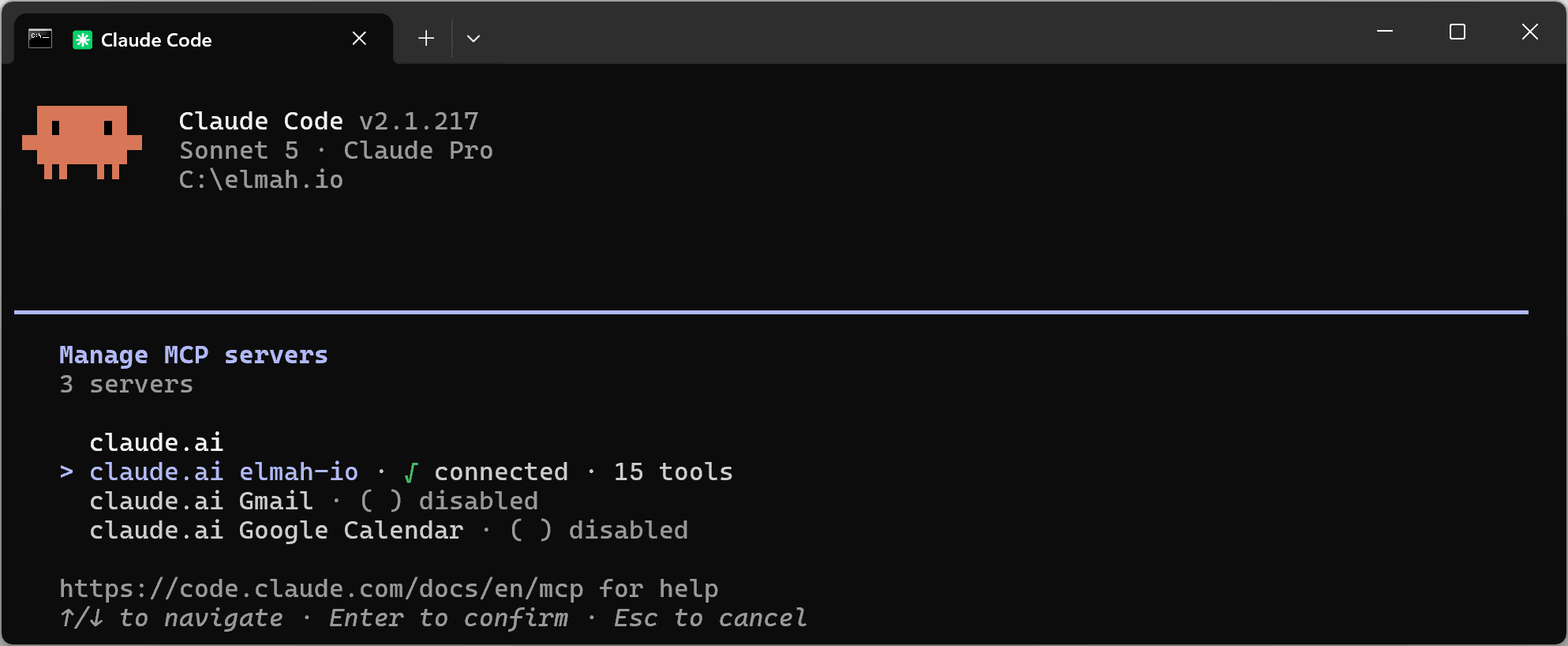
Check that elmahio shows up as "connected". If it doesn't, the most common issue in my experience is that the OAuth flow got closed before finishing. Running /mcp again and re-authenticating should fix it.
If you'd rather not write your own prompts and just want a working setup out of the box, there's also an AI Plugin that installs the MCP server together with a handful of ready-made skills and a background monitoring agent. I'll stick to the raw MCP setup here, since that's what most of the examples below build on.
What a real fix looks like end to end
Rather than list out the individual things you can ask, let's stick to the scenario specified in the beginning: receiving a new error notification. It usually starts with a Slack message or an email from elmah.io saying a new error was just logged in production. Instead of opening a browser tab, I switch to Claude Code, which already has the MCP server connected. I'll open Claude Code in the base directory containing subfolders for all of elmah.io's sites and services. Then ask it to fetch the error details:
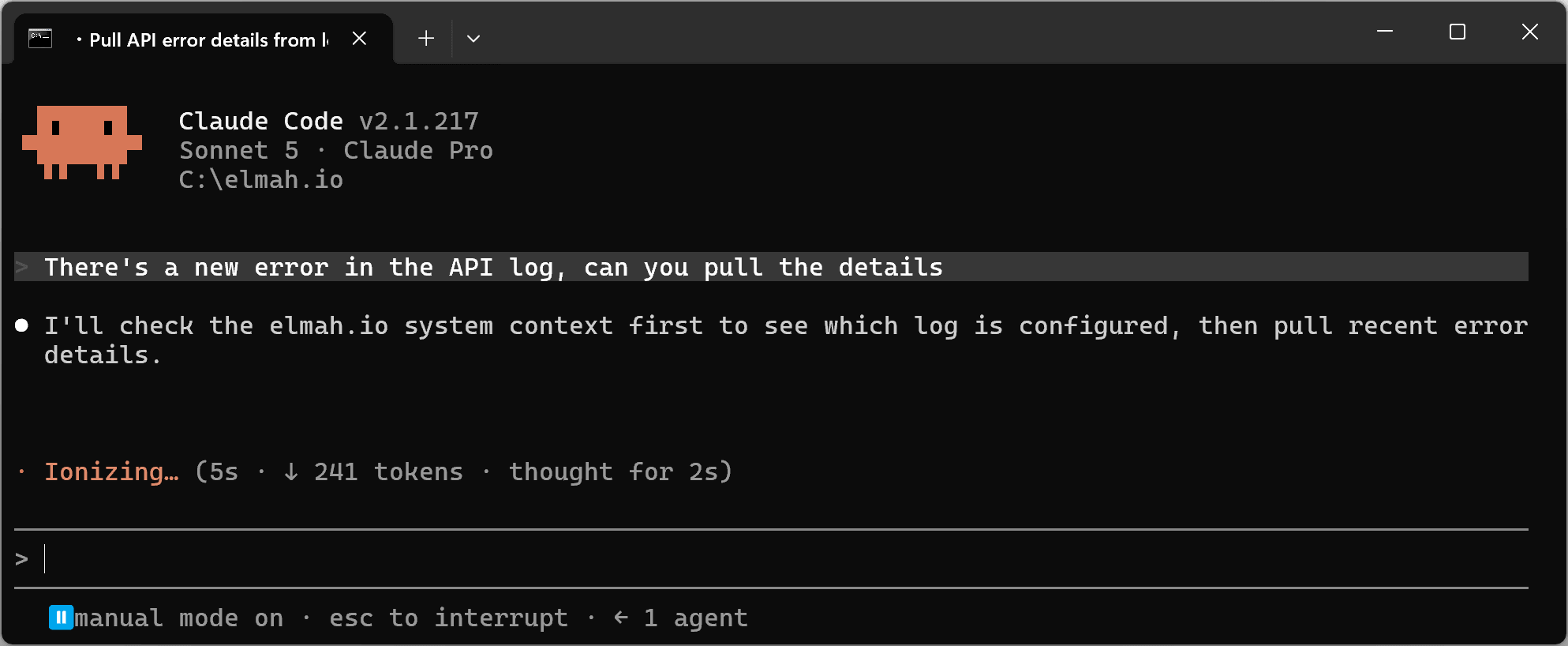
The first time you do this, Claude Code will ask the elmah.io MCP for a list of logs you have access to, to try and find the right log. After running through this workflow for each individual project and log, Claude will remember which log belongs to which project. You can also tell Claude the mapping between folders and log IDs up front and have it save it to memory.
Claude goes and fetches the actual message, stack trace, URL, and whatever custom data got attached. The same thing I'd otherwise be looking at on app.elmah.io.
From there I'll usually just ask it to try and fix the error:
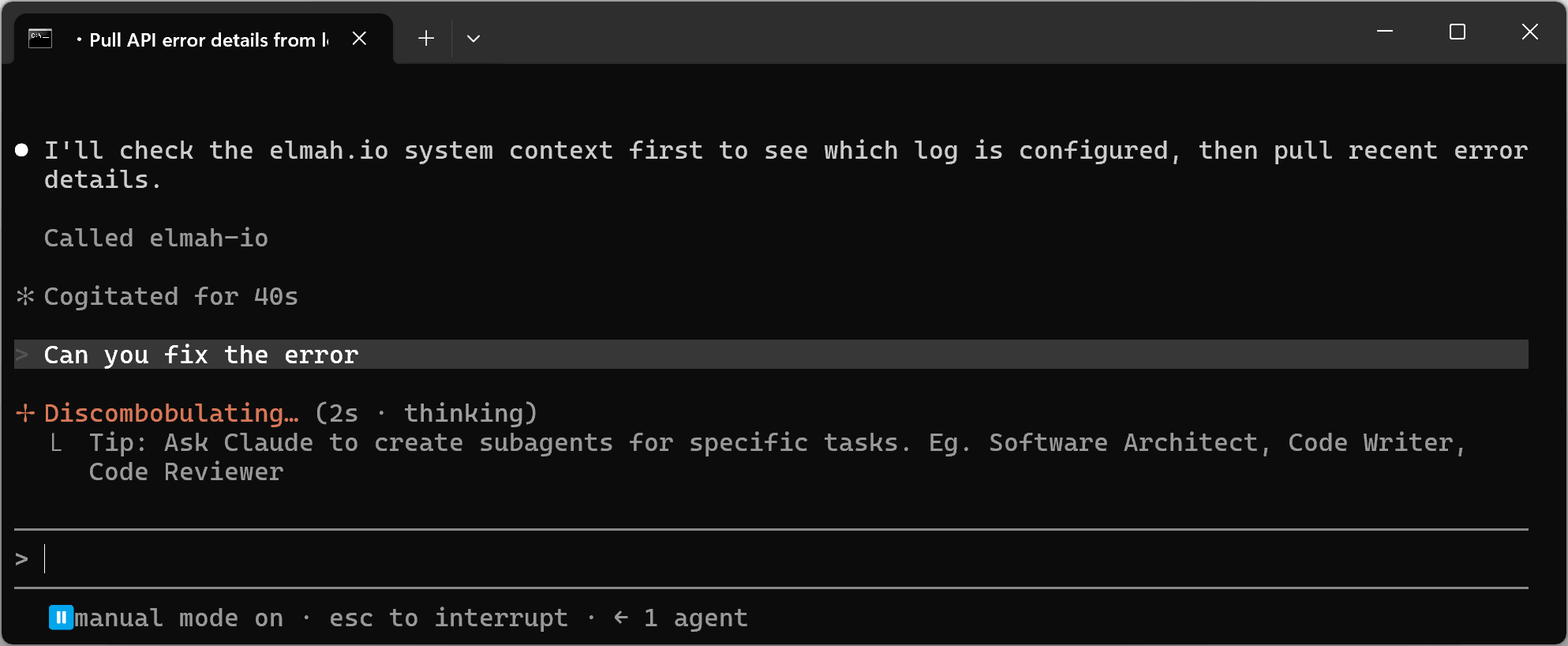
Because Claude Code already has the codebase open, it has both the error and the code that caused it in the same context. It can go find the line the stack trace points to, work out why it's throwing, and make the change. This is the part that still feels a little unreal to type out, but it's genuinely how it goes most of the time now. I'm reading a diff instead of writing one.
Once I'm happy with the fix, I'll have it commit and push, the same way I would with any other change it makes for me. No copy-pasting a stack trace into a chat window, no switching context to go write the fix myself. The whole loop from "here's an error" to "here's a pushed commit" happens in one conversation. I always do a code review of the changes and often still launch the project locally to check that everything is working as expected. In many cases, testing on our staging environment is just as good. Claude also extends or writes a new unit test to verify the fix when it makes sense. And using the Playwright MCP server, I often let it take the application for a spin in the browser.
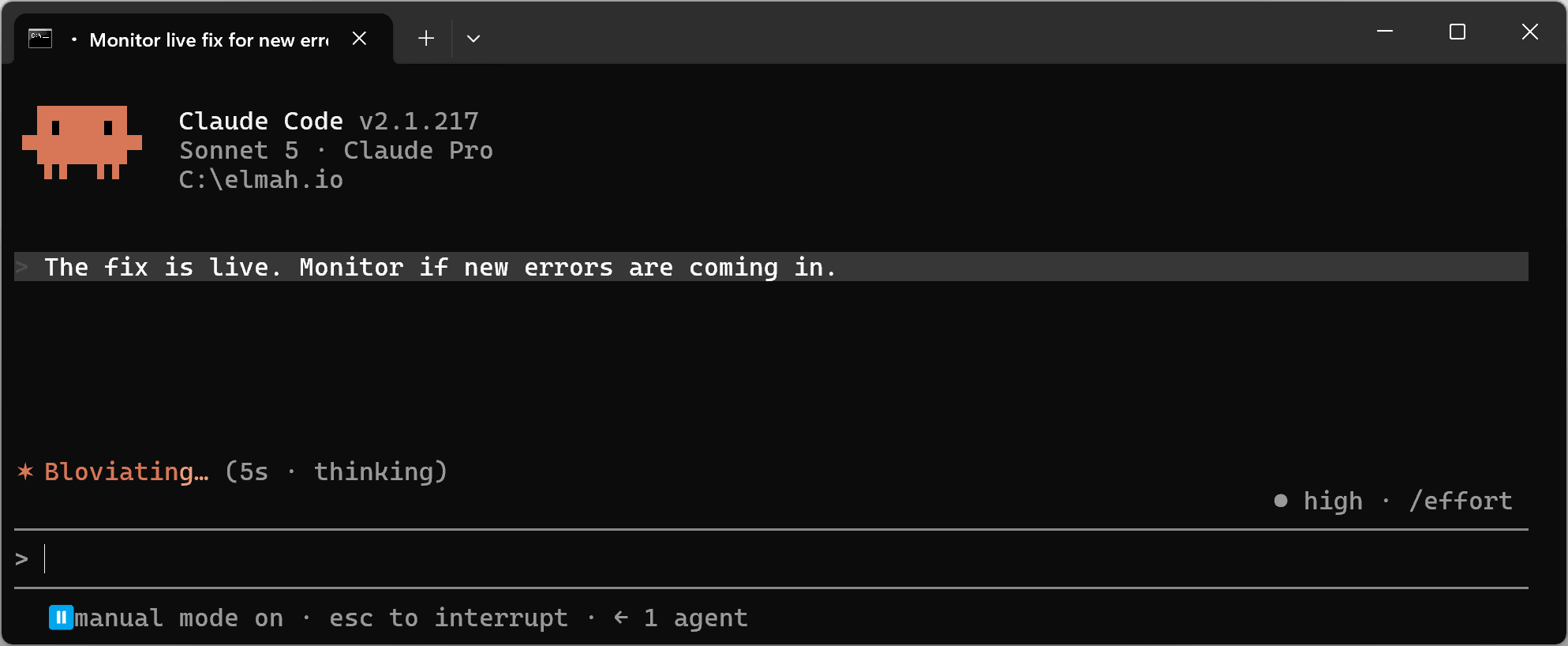
The part I think people skip when they talk about AI fixing bugs is what happens after it's live. That's where I use elmah.io's MCP server just as much. Once the fix has deployed, I'll go back to the same Claude Code session and ask it to monitor if new errors are being logged:
If it's a web app, I'll also ask it to check the uptime checks for that service:
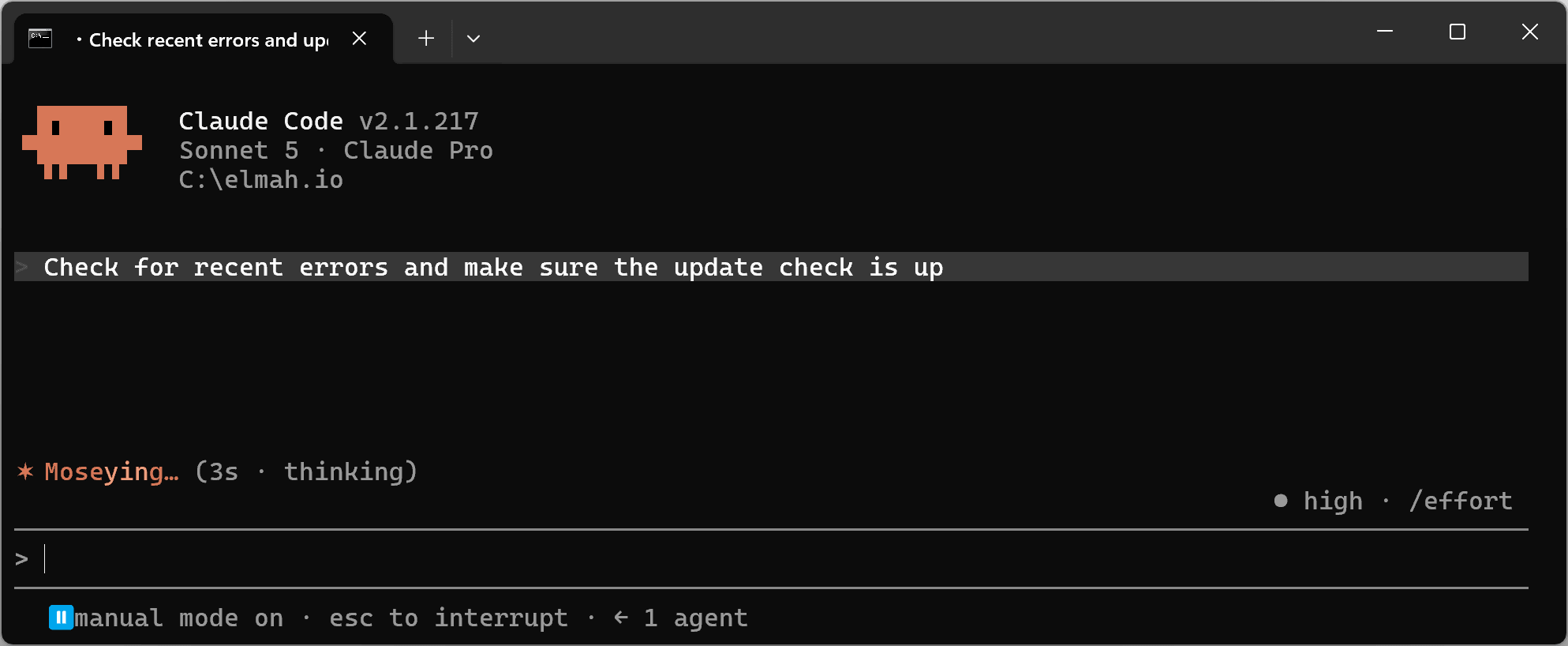
This is to make sure the deploy itself didn't break anything unrelated. If it's a background service instead, like a scheduled job, Azure Function, or something without a URL to ping, I'll ask about heartbeats instead, since that's how we track whether those are still checking in on schedule:
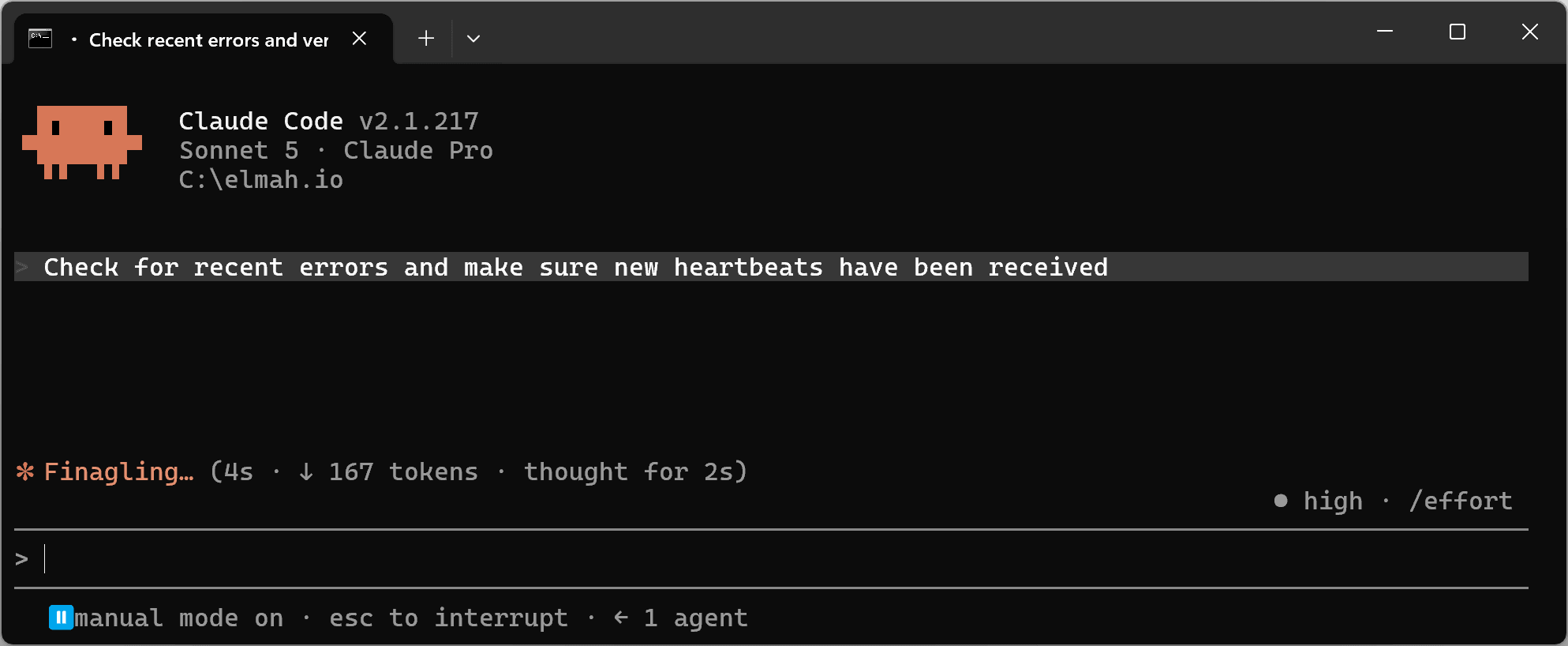
That follow-up step is a small thing, but it's the one that made this feel trustworthy enough to actually use for real fixes.
Conclusion
We build the range of dashboards on app.elmah.io because sometimes, that's the right interface for looking at errors. But the better AI clients are becoming, a good chunk of the time I actually want to look at an error, I'm already in Claude Code doing something else. Switching tools costs more than the two seconds it sounds like. Having elmah.io reachable from the same place I'm already working is a small thing, but it's the kind of small thing that changes how often you actually check on your errors instead of waiting for them to page you.
In this post, I showed a simple example where Claude Code was able to fix everything from just looking at the error and the codebase. Of course, in real life, it's a cooperation between me as the developer who knows a lot of details about the elmah.io code base and the AI. Simple bugs can be fixed fast by the AI, while more complex issues require more input from me.
If you want to try it yourself, the docs page has the same setup steps in reference form, along with the equivalent instructions for Claude Desktop and other MCP-compatible tools.
elmah.io: Error logging and Uptime Monitoring for your web apps
This blog post is brought to you by elmah.io. elmah.io is error logging, uptime monitoring, deployment tracking, and service heartbeats for your .NET and JavaScript applications. Stop relying on your users to notify you when something is wrong or dig through hundreds of megabytes of log files spread across servers. With elmah.io, we store all of your log messages, notify you through popular channels like email, Slack, and Microsoft Teams, and help you fix errors fast.

See how we can help you monitor your website for crashes Monitor your website