
Simplifying file logging in ASP.NET Core with Serilog
Imagine a bug suddenly arises in the frontend from an endpoint. The endpoint has multiple layers and involves dozens of files. Now, you are tasked to resolve that bug, those piles of code make it difficult to pinpoint the cause of the error. Some exceptions, like 'Object reference not set to an instance of an object" are vague and hard to detect. You need a detailed log of API operations to identify the exact code and reason for the error. Serilog is one fine choice for logging that we will use to implement file logging in ASP .NET Core API.
Why use Serilog?
Serilog is a powerful logging library for .NET applications. It generates structured logs that are both human- and machine-readable, and you can easily filter and query them. Besides, it provides an array of sink options, including Console, File, SQL, Elasticsearch, and elmah.io.
Implementing Serilog file logging in ASP .NET Core API
I will start with a basic ASP.NET 10 API with simple logging code. Later, I will try to cover important use cases for real-world applications.
Step 1: Create an API project
dotnet new web -n SerilogFileLog Step 2: Install required packages
dotnet add package Serilog.AspNetCore
dotnet add package Serilog.Sinks.File
They are Serilog packages, and later on, logs will be written to files.
I am fond of Swagger, but .NET 10 does not provide Swagger Ui by default, hence I am using the package. To keep the work similar to the readers, I will use Swagger, as most developers are already familiar with it.
dotnet add package Swashbuckle.AspNetCore Step 3: Define Controller
using Microsoft.AspNetCore.Mvc;

namespace SerilogFileLog.Controllers;

[ApiController]
[Route("api/[controller]")]
public class WeatherController : ControllerBase
{
    private readonly ILogger<WeatherController> _logger;

    public WeatherController(ILogger<WeatherController> logger)
    {
        _logger = logger;
    }

    [HttpGet]
    public IActionResult Get()
    {
        _logger.LogInformation("Weather endpoint called");

        return Ok("Hello Serilog");
    }
}
The controller is simple, so we can focus on our main topic for now. ILogger object _logger is responsible for writing messages to logs. A naive way would be Log.Information("Weather endpoint called");using Serilog's global logger, which does not require injection. However, it does not give the context of the class where the error originates. Injecting a logger in classes is recommended for production environments.
Step 4: Configure Program.cs
using Serilog;
var builder = WebApplication.CreateBuilder(args);

Log.Logger = new LoggerConfiguration()
    .WriteTo.File("logs/log.txt")
    .CreateLogger();

builder.Host.UseSerilog();

builder.Services.AddOpenApi();

// Services
builder.Services.AddControllers();

var app = builder.Build();

// Configure the HTTP request pipeline.
if (app.Environment.IsDevelopment())
{
    app.MapOpenApi();
    app.UseSwaggerUI(options =>
        {
            options.SwaggerEndpoint("/openapi/v1.json", "v1");
        }
    );
}

app.UseHttpsRedirection();

app.MapControllers();
app.Run();
So, I am adding a file logs/log.txt for the log, followed by builder.Host.UseSerilog(); injecting Serilog. I used app.UseSwaggerUI for Swagger UI here.
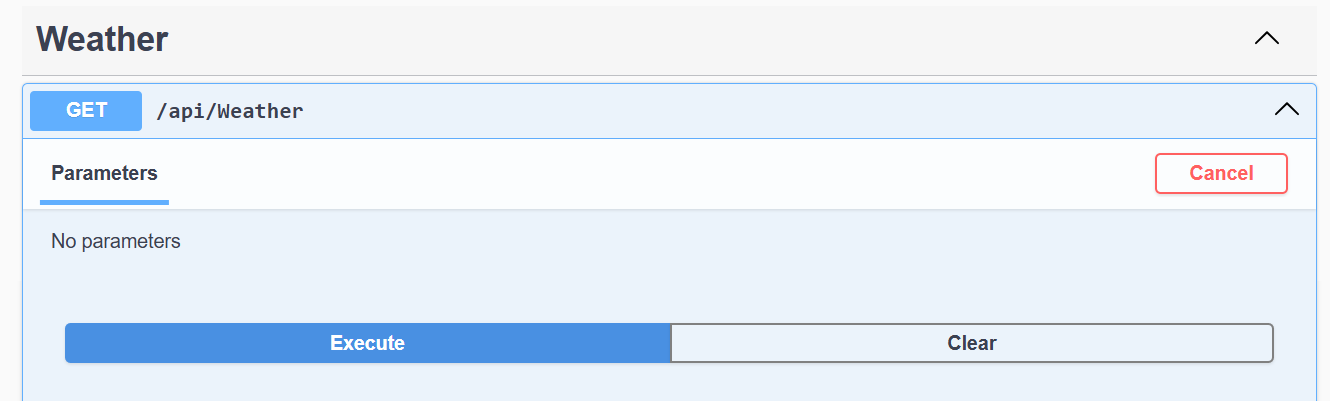
Step 5: run the project
dotnet runResult
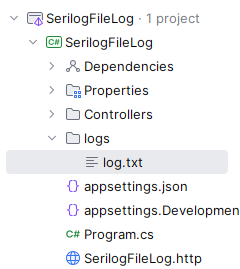
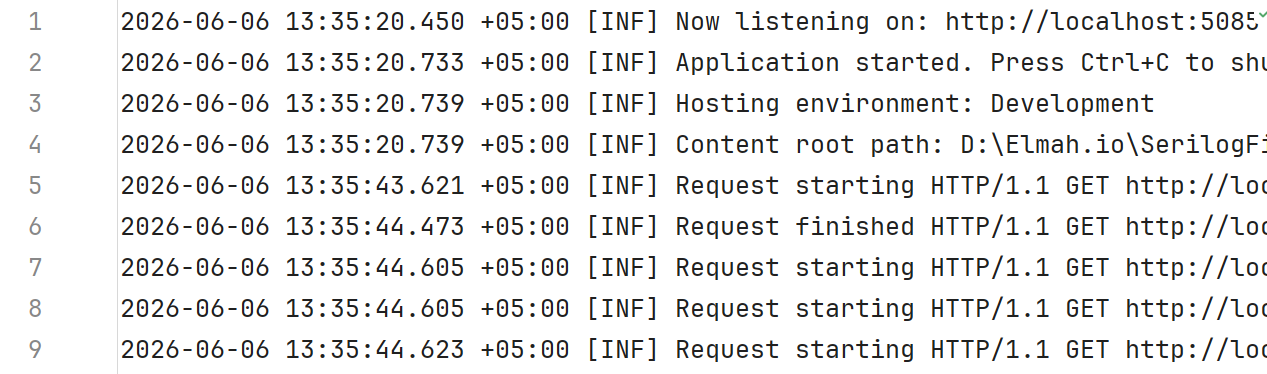
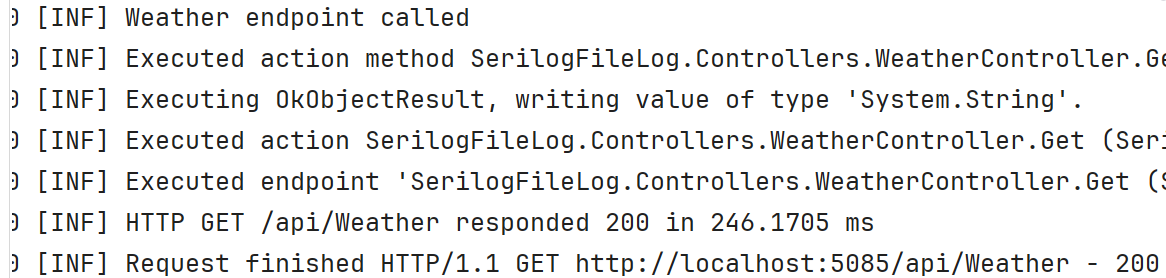
A new log is created in the solution explorer.
Rolling day logs
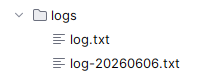
A good practice in logging is to keep daily logs in a separate file. Serilog allows us to do so. Just change the logging snippet.
Log.Logger = new LoggerConfiguration()
    .WriteTo.File(
        "logs/log-.txt",
        rollingInterval: RollingInterval.Day
        )
    .CreateLogger();
A new daily file will be created.
Logging configurations from appsettings.json
Let's move to a production-level example. I will add the log details in appsettings.
{
  "Serilog": {
    "MinimumLevel": "Information",
    "WriteTo": [
      {
        "Name": "File",
        "Args": {
          "path": "logs/log-.log",
          "rollingInterval": "Day"
        }
      }
    ]
  },
 //Other appsetting fields
}
MinimumLevel controls the lowest log level that will be written. Also, I moved the rolling interval here. Other options for rolling are
MinuteHourDayMonthYearInfinite
and a slight change in the code.
Log.Logger = new LoggerConfiguration()
    .ReadFrom.Configuration(builder.Configuration)
    .CreateLogger();
Levels of Serilog logs
Serilog defines logs in different severity levels as follows, from lowest to highest
Verbose: Detailed diagnostic logs
Debug: Developer troubleshooting information
Information: Normal application events
Warning: Potential issue detected
Error: Operation failed unexpectedly
Fatal: Application cannot continue
By setting MinimalLevel to Information, we will ignore Verbose and Debug messages and will keep the higher ones.
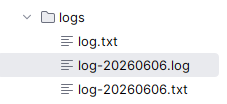
Our new log file is.
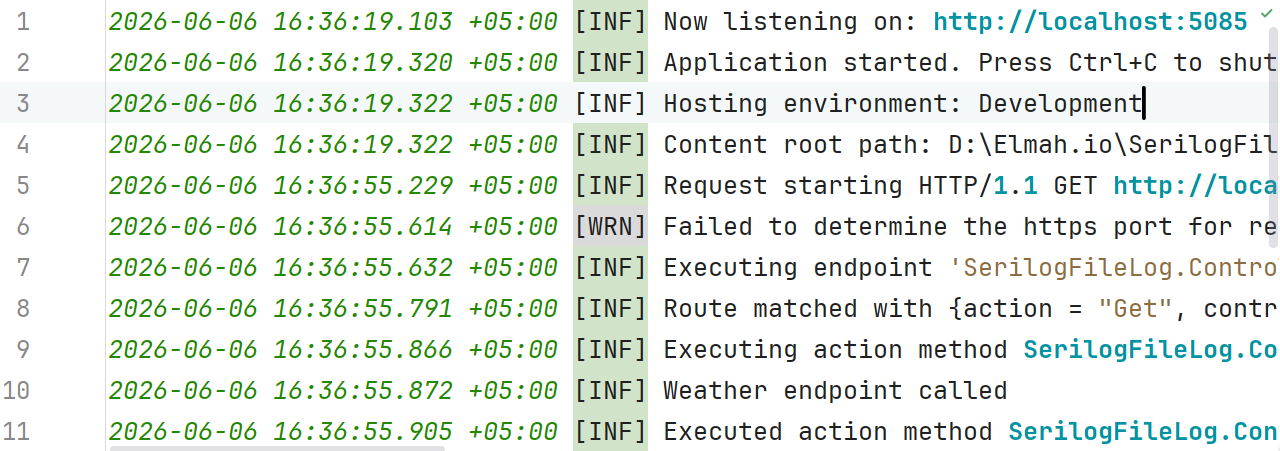
And its content.
Why .log is recommended over .txt?
Log is an industry standard for application logs, and it is easy to identify log files. Many log viewers and monitoring tools automatically recognize .log.
Logging on Errors
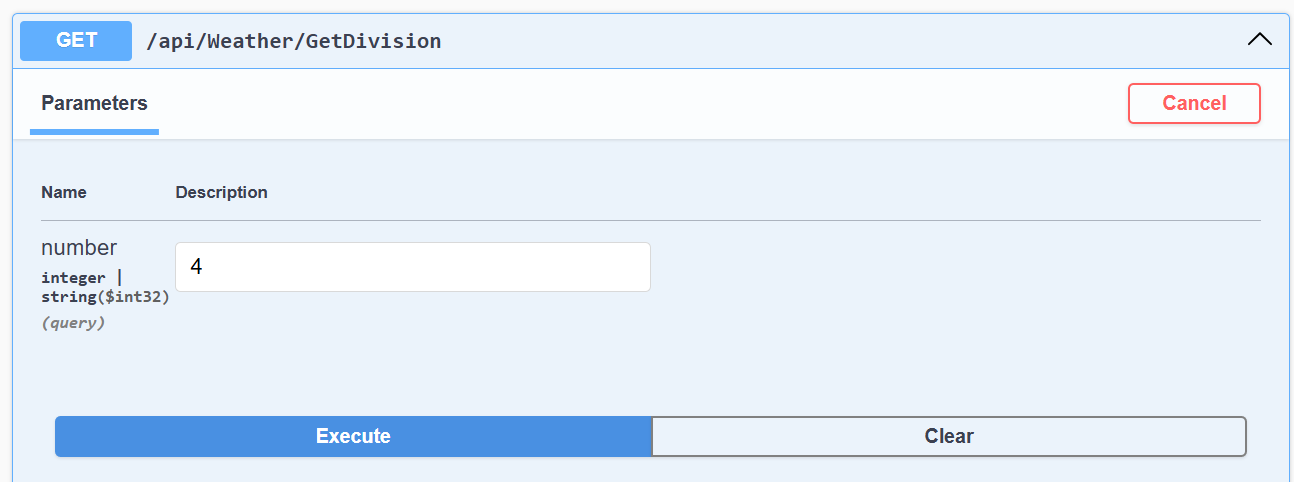
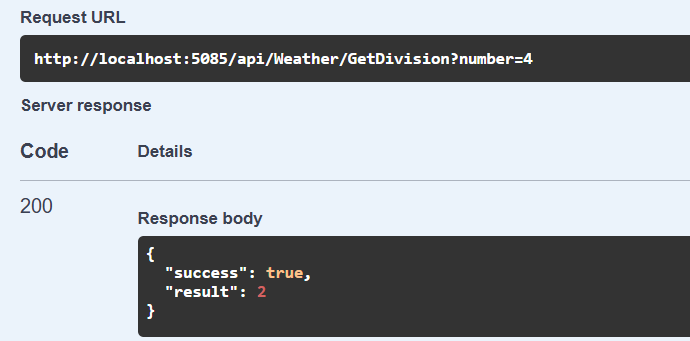
Now, define a method in the controller that may throw an error.
[HttpGet("GetDivision")]
    public IActionResult GetDivision(int number)
    {
        try
        {
            _logger.LogInformation("GetDivision endpoint called with number: {Number}", number);

            int result = 10 / number;

            _logger.LogInformation(
                "Division completed successfully. Result: {Result}",
                result);

            return Ok(new
            {
                Success = true,
                Result = result
            });
        }
        catch (Exception ex)
        {
            _logger.LogError(
                ex,
                "An error occurred in GetDivision. Input Number: {Number}",
                number);

            return StatusCode(StatusCodes.Status500InternalServerError, new
            {
                Success = false,
                Message = ex.Message
            });
        }
    }
LogError in the catch block will write as an error message.
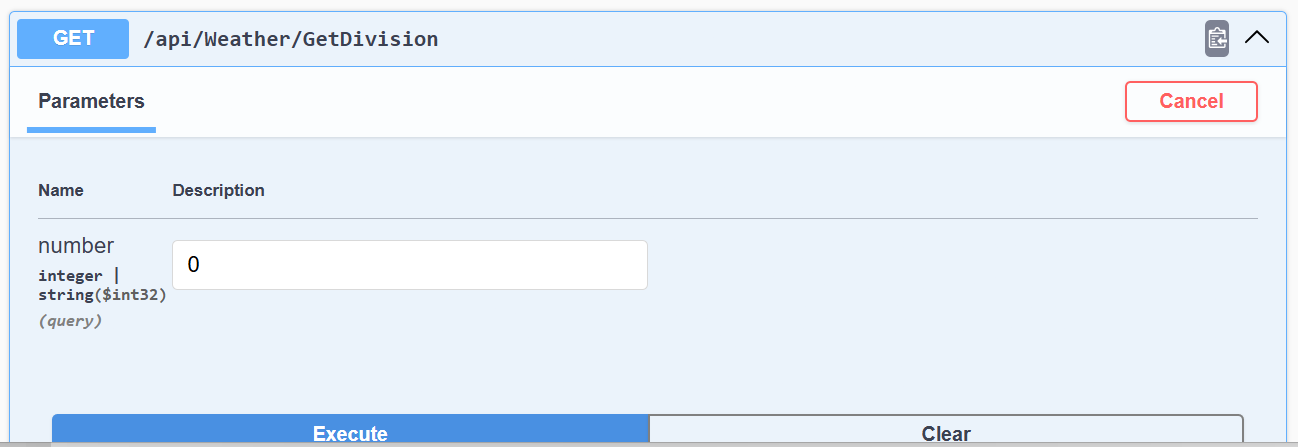
Erroneous condition.
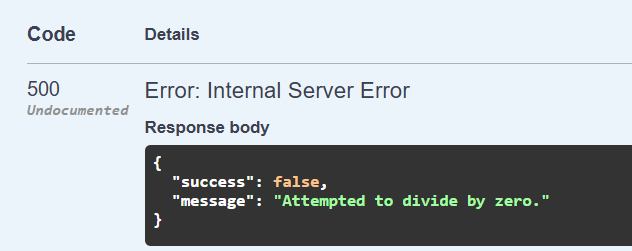
Well, let's check the logs now.
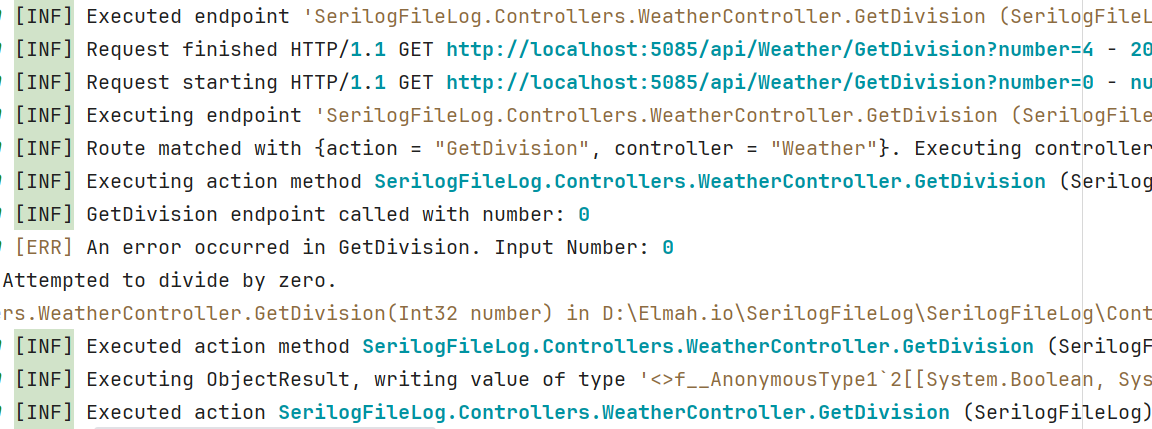
Or the complete message is.
2026-06-06 18:30:39.729 +05:00 [ERR] An error occurred in GetDivision. Input Number: 0
System.DivideByZeroException: Attempted to divide by zero.
   at SerilogFileLog.Controllers.WeatherController.GetDivision(Int32 number) in D:\Elmah.io\SerilogFileLog\SerilogFileLog\Controllers\WeatherController.cs:line 30
We can get the exact line number along with the error description.
Add Enrichers and Output templates.
Serilog allows capturing metadata, such as the requester's device and username. For that, use the package.
dotnet add package Serilog.Enrichers.Environment There are two ways to include metadata in the logs, Either you can define in the appsettings.json will include an Enrich object and a template that defines the log message.
{
  "Serilog": {
    "MinimumLevel": "Information",
    "Enrich": [
      "WithMachineName",
      "WithEnvironmentUserName",
      "FromLogContext"
    ],
    "WriteTo": [
      {
        "Name": "File",
        "Args": {
          "path": "logs/log-.log",
          "outputTemplate": "{Timestamp:yyyy-MM-dd HH:mm:ss.fff zzz} [{Level:u3}] {MachineName} {EnvironmentUserName} {Message:lj}{NewLine}{Exception}",
          "rollingInterval": "Day"
        }
      }
    ]
  },
  //Other
}
Or allowing the enrichment in the code.
Log.Logger = new LoggerConfiguration()
    .ReadFrom.Configuration(builder.Configuration)
    .Enrich.WithMachineName()
    .Enrich.WithEnvironmentUserName()
    .Enrich.FromLogContext()
        .CreateLogger();
Finally, it looks like.
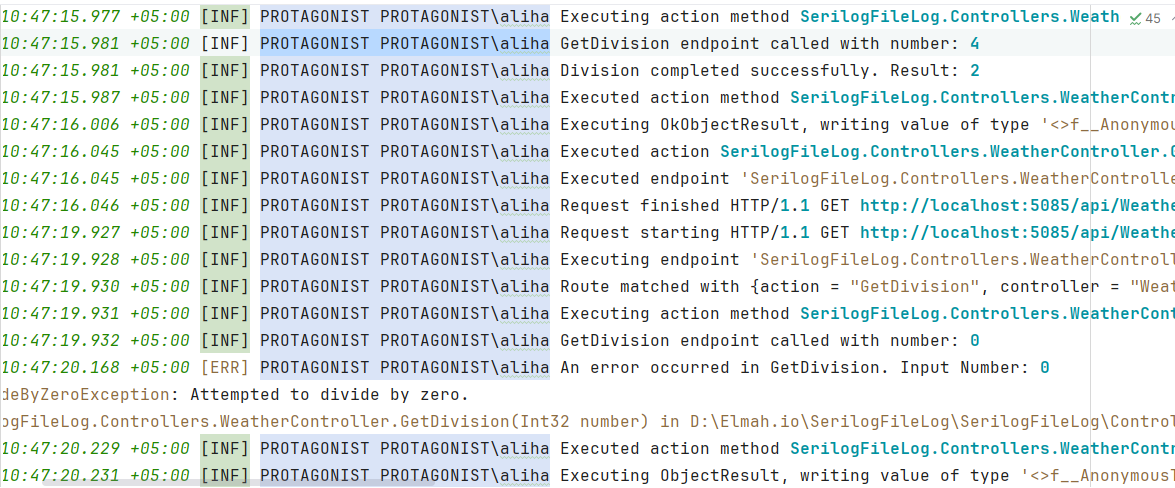
My PC and user name are added to the logs.
Logging Application Startup Events
Apart from operations errors, you can leverage Serilog's static methods to log errors that arise during startup. As there is no dependency when the application starts, you may not get the idea what happened, then comes the following.
using Serilog;

var builder = WebApplication.CreateBuilder(args);

// Configure and Enrich
Log.Logger = new LoggerConfiguration()
    .ReadFrom.Configuration(builder.Configuration)
    .Enrich.WithMachineName()
    .Enrich.WithEnvironmentUserName()
    .Enrich.FromLogContext()
        .CreateLogger();

try
{
    Log.Information("Starting up!");

    builder.Host.UseSerilog();

    builder.Services.AddOpenApi();

    // Services
    builder.Services.AddControllers();

    var app = builder.Build();

    // Configure the HTTP request pipeline.
    if (app.Environment.IsDevelopment())
    {
        app.MapOpenApi();
        app.UseSwaggerUI(options =>
            {
                options.SwaggerEndpoint("/openapi/v1.json", "v1");
            }
        );
    }

    app.UseHttpsRedirection();
    throw new Exception("a startup error");
    app.MapControllers();
    app.Run();
    Log.Information("Stopped cleanly");
    return 0;
}
catch (Exception ex)
{
    Log.Fatal(ex, "An unhandled exception occurred during startup");
    return 1;
}
finally
{
    Log.CloseAndFlush();
}
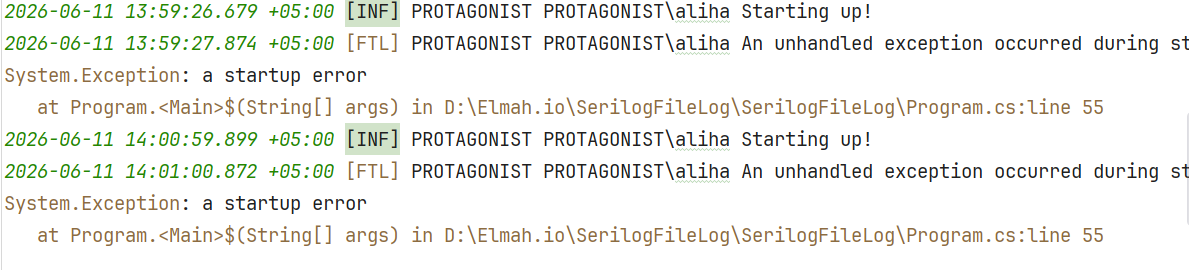
The CloseAndFlush method writes any pending log entries and releases resources by the Serilog. It is recommended to use the method to not to loose last logs before the application shuts down or crashes. I manually threw an error in between.
Conclusion
Logging is important for debugging an application and ensuring a seamless experience. Also, you can use logs to make critical business decisions. Today, I shared how to use Serilog file logging in .NET APIs. I began with basic file logging, progressed to scenarios of real applications, including daily rolling logs, and moved all configuration to appsettings.json standard practices. Additionally, I highlighted enrichers like WithMachineName() and WithEnvironmentUserName() to automatically attach valuable metadata to every log entry.
While file logging is perfect for testing Serilog locally, text files often aren't ideal in production. For live apps, streaming Serilog events to a cloud-based system like elmah.io centralizes your logs and provides real-time alerts before bugs impact your users.
Code: https://github.com/elmahio-blog/SerilogFileLog.git
elmah.io: Error logging and Uptime Monitoring for your web apps
This blog post is brought to you by elmah.io. elmah.io is error logging, uptime monitoring, deployment tracking, and service heartbeats for your .NET and JavaScript applications. Stop relying on your users to notify you when something is wrong or dig through hundreds of megabytes of log files spread across servers. With elmah.io, we store all of your log messages, notify you through popular channels like email, Slack, and Microsoft Teams, and help you fix errors fast.

See how we can help you monitor your website for crashes Monitor your website