
Memory-efficient JSON in .NET 10 web APIs with PipeReader
What happens when your ASP.NET Core API needs to deserialize a JSON payload containing one million objects? The JSON serializer has a lot of work to do, such as building the resulting object graph and managing memory allocation. That can put noticeable pressure on memory and the garbage collector (GC). .NET 10 introduces PipeReader support in System.Text.Json, providing a pipeline-based way to feed JSON data directly into the serializer. It provides an alternative to the traditional stream-based processing.
In this article, I will show the differences between the two approaches and test them against execution time, memory allocation, and GC load.
What is zero-copy?
Zero-copy refers to the technique of processing data across memory spaces without making redundant copies in memory. By avoiding duplicate copies, the program drastically reduces CPU overhead, conserves RAM, and eliminates Garbage Collector (GC) pressure, achieving a remarkable boost in performance.
Analyzing .NET 10 web API JSON improvements
As always, I will keep things simple. I am using a minimal API with a JSON dataset, let's begin.
Step 1: Create project
dotnet new webapi -n ZeroCopyJsonDemo -f net10.0
cd ZeroCopyJsonDemo
Step 2: Create models
Reading model
namespace ZeroCopyJsonDemo.Models;

public class TelemetryReading
{
    public DateTime Timestamp { get; set; }

    public double Temperature { get; set; }

    public double Humidity { get; set; }
}
Model for request
public class TelemetryRequest
{
    public string DeviceId { get; set; } = string.Empty;

    public List<TelemetryReading> Readings { get; set; } = [];
}
Step 3: Create a large JSON file
To simulate a large JSON dataset, I am adding an endpoint that does it
app.MapGet("/create-json", () =>
{
    var payload = new TelemetryRequest
    {
        DeviceId = "device-001",
        Readings = Enumerable.Range(1, 1_000_000)
            .Select(i => new TelemetryReading
            {
                Timestamp = DateTime.UtcNow.AddSeconds(i),
                Temperature = 20 + i % 10,
                Humidity = 40 + i % 20
            })
            .ToList()
    };

    var json = JsonSerializer.SerializeToUtf8Bytes(payload);

    File.WriteAllBytes("large.json", json);

    return Results.Ok(new
    {
        SizeMB = Math.Round(json.Length / 1024d / 1024d, 2)
    });
});
It generates 1 million readings and writes them to a JSON file.
Step 4: Write testing methods
static async Task<object> MeasureNormal()
{
    GC.Collect();
    GC.WaitForPendingFinalizers();
    GC.Collect();

    var allocatedBefore = GC.GetTotalAllocatedBytes(true);

    var gen0Before = GC.CollectionCount(0);
    var gen1Before = GC.CollectionCount(1);
    var gen2Before = GC.CollectionCount(2);

    var stopwatch = Stopwatch.StartNew();

    await using var stream = File.OpenRead("large.json");

    var result =
        await JsonSerializer.DeserializeAsync<TelemetryRequest>(stream);

    stopwatch.Stop();

    var allocatedAfter = GC.GetTotalAllocatedBytes(true);

    return new
    {
        ExecutionTimeMs = stopwatch.Elapsed.TotalMilliseconds,

        AllocatedMemoryMB = Math.Round(
            (allocatedAfter - allocatedBefore) / 1024d / 1024d, 2),

        Gen0Collections = GC.CollectionCount(0) - gen0Before,
        Gen1Collections = GC.CollectionCount(1) - gen1Before,
        Gen2Collections = GC.CollectionCount(2) - gen2Before
    };
}
For a fair benchmark, I enforced garbage collection. It will test a normal traditional approach. Then, recorded memory allocation and time with a stopwatch. The line:
await using var stream = File.OpenRead("large.json");opens the JSON file as a normal .NET Stream. While, the next line deserializes it using System.Text.Json into TelemetryRequest returning as a result.
Finally, I got the total memory allocation, time elapsed and Garbage collector usage by the differences. The
/ 1024d / 1024dconverts bytes to MB.
static async Task<object> MeasurePipeline()
{
    GC.Collect();
    GC.WaitForPendingFinalizers();
    GC.Collect();

    var allocatedBefore = GC.GetTotalAllocatedBytes(true);

    var gen0Before = GC.CollectionCount(0);
    var gen1Before = GC.CollectionCount(1);
    var gen2Before = GC.CollectionCount(2);

    var stopwatch = Stopwatch.StartNew();

    await using var stream = File.OpenRead("large.json");

    var reader = PipeReader.Create(stream);

    var result =
        await JsonSerializer.DeserializeAsync<TelemetryRequest>(reader);

    await reader.CompleteAsync();

    stopwatch.Stop();

    var allocatedAfter = GC.GetTotalAllocatedBytes(true);

    return new
    {
        ExecutionTimeMs = stopwatch.Elapsed.TotalMilliseconds,

        AllocatedMemoryMB = Math.Round(
            (allocatedAfter - allocatedBefore) / 1024d / 1024d, 2),

        Gen0Collections = GC.CollectionCount(0) - gen0Before,
        Gen1Collections = GC.CollectionCount(1) - gen1Before,
        Gen2Collections = GC.CollectionCount(2) - gen2Before
    };
}
Again, enforcing garbage collection so both tests start from the same state. Now instead of giving the Stream directly to JsonSerializer, we give it the PipeReader. Then System.Text.Json's serializer deserializes directly from the PipeReader. One important part is to complete the pipe reader after we are done with.
await reader.CompleteAsync();Step 5: Create benchmark endpoint
app.MapGet("/benchmark", async () =>
{
    var normal = await MeasureNormal();
    var pipeline = await MeasurePipeline();

    return Results.Ok(new
    {
        Normal = normal,
        Pipeline = pipeline
    });
});
That is a simple, minimal endpoint to run both measures.
Step 6: Run the project
dotnet run -c ReleaseFor benchmarking, I ran it in Release mode.
Step 7: Prepare the JSON file with the endpoint
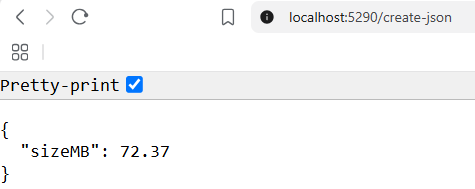
The endpoint generated alarge.json file of size 72MB which is not ideal to represent a real large file but is considerable for the demo.
Step 8: Navigate to the benchmarking endpoint
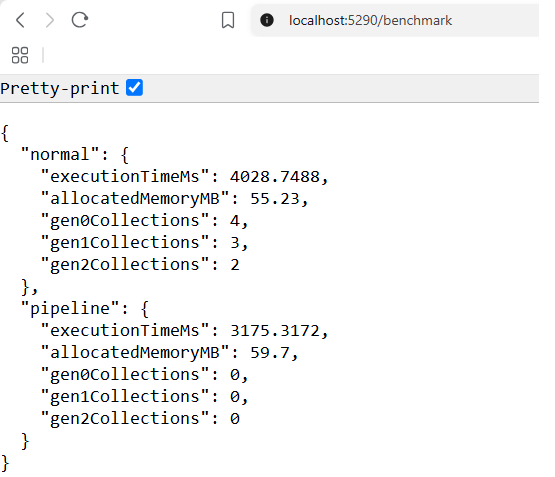
Run /benchmark 5–10 times, ignore the first run because of JIT warm-up, and compare the later results. A single execution is not a reliable performance benchmark.
We're creating a pipeline reader around the file stream. .NET 10 allows System.Text.Json to deserialize JSON directly from a PipeReader. So instead of us doing something like:
var bytes = await ReadEntireRequestBody();and then passing those bytes to the JSON serializer, we're allowing the serializer to consume the pipeline. So functionally, both endpoints do the same thing. We're not changing the API's behavior. We're changing how the request body is consumed. We utilized the .NET 10 power ofPipeReader that allows System.Text.Json to consume JSON from a pipeline, which can help avoid unnecessary buffering and copying in suitable workloads.
One improvement is in garbage collector usage. During deserialization, .NET has to create a very large object graph that requires allocations. To clean temporary allocations and other working data, GC has to jump in. While the buffering/consumption model of PipeReader can process the input incrementally without creating enough additional GC-triggering pressure during this run. The lower GC pressure resulted in 21% faster results.
Conclusion
We discovered one major .NET 10 improvement in JSON processing. The pipe reader with System.Text.Json changes the game for large dataset parsing. With the example API project, we observed changes in execution time and GC pressure, showing that .NET 10 optimized the job with its zero-copy capabilities. If you're deserializing large JSON payloads or using a high-throughput endpoint, prefer the PipeReader overload. You trade a small amount of extra raw allocation to avoid LOH churn and GC pauses, which is almost always the better trade in a hot request path than its traditional counterpart.
Code: https://github.com/elmahio-blog/ZeroCopyJsonDemo.git
elmah.io: Error logging and Uptime Monitoring for your web apps
This blog post is brought to you by elmah.io. elmah.io is error logging, uptime monitoring, deployment tracking, and service heartbeats for your .NET and JavaScript applications. Stop relying on your users to notify you when something is wrong or dig through hundreds of megabytes of log files spread across servers. With elmah.io, we store all of your log messages, notify you through popular channels like email, Slack, and Microsoft Teams, and help you fix errors fast.

See how we can help you monitor your website for crashes Monitor your website