Mapping database views in EF Core without breaking migrations
Entity Framework Core (EF Core) is working fine in your project. But the moment you use views, the migration gets messy. As a developer, I know any problem in the migration is haunting. You have to update and take care of other migrations so they don't get disturbed. If not done well, database views can throw you into a pitfall. In today's post, I will walk through how to map views in EF Core without breaking migrations.
What is a database view?
A view is a named query that acts as a virtual table. It is defined using base tables or previously defined views and provides an abstraction of a complex query. Views do not store any data, but they execute the enclosed query. Views reduce client-side code by encapsulating logic and adding reusability. Although it supports data modifications like create and update in some cases, it is primarily used for read-only operations.
Mapping database views with EF Core
Let's see, with the glasses from the actual project, how we can utilize views. I will use a console project with a PostgreSQL database.
Step 1: Create the project
dotnet new console -n EfCoreViewDemo
cd EfCoreViewDemo
Step 2: Install necessary NuGet packages
dotnet add package Npgsql.EntityFrameworkCore.PostgreSQL
dotnet add package Microsoft.EntityFrameworkCore.Design
dotnet add package Microsoft.Extensions.Configuration
dotnet add package Microsoft.Extensions.Configuration.Json
Configuration packages will be used to load appsettings.
Step 3: Create appsettings.json
Adding appsettings.json with a database connection string.
{
  "ConnectionStrings": {
    "PostgresConnection": "Host=localhost;Port=5432;Database=productVDb;Username=postgres;Password=1234"
  }
}
Step 4: Define Models
Add the Product class:
namespace EfCoreViewDemo.Models;
public class Product
{
    public int Id { get; set; }
    public string Name { get; set; } = string.Empty;
    public decimal Price { get; set; }
}
The ProductSummary class will catch the results of the view:
namespace EfCoreViewDemo.Models;

public class ProductSummary
{
    public string Name { get; set; } = string.Empty;
    public decimal Price { get; set; }
}
Step 5: Configure DbContext
using EfCoreViewDemo.Models;
using Microsoft.EntityFrameworkCore;
using Microsoft.Extensions.Configuration;

namespace EfCoreViewDemo.Data;

public class ApplicationDbContext: DbContext
{
    public DbSet<Product> Products => Set<Product>();
    public DbSet<ProductSummary> ProductSummaries => Set<ProductSummary>();

    private readonly string _connectionString;

    public ApplicationDbContext()
    {
        var config = new ConfigurationBuilder()
            .SetBasePath(Directory.GetCurrentDirectory())
            .AddJsonFile("appsettings.json")
            .Build();

        _connectionString = config.GetConnectionString("PostgresConnection");
    }

    protected override void OnConfiguring(DbContextOptionsBuilder optionsBuilder)
    {
        optionsBuilder.UseNpgsql(_connectionString);
    }

    protected override void OnModelCreating(ModelBuilder modelBuilder)
    {
        modelBuilder.Entity<ProductSummary>()
            .ToView("vw_product_summary")
            .HasNoKey();
    }
}
One important configuration is ToView(...) that specifies the DbSet map as a database view. Calling ProductSummaries will fetch data from the view named vw_product_summary. HasNoKey() specifies that views are read-only structures in the database and do not contain any primary key. If not specified, EF Core expects a primary key on the entity and throws an exception.
Step 6: Set up appsettings.json in the project
By default, a console app will expect the file in the bin directory. To read newly added appsettings from the root directory, add the following inside the <Project> tag of the application's project file:
<ItemGroup>
  <None Update="appsettings.json">
    <CopyToOutputDirectory>PreserveNewest</CopyToOutputDirectory>
  </None>
</ItemGroup>
Step 7: Run migrations
dotnet ef migrations add InitialCreateSo the migration will look like
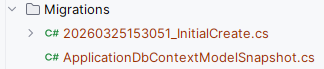
using Microsoft.EntityFrameworkCore.Migrations;
using Npgsql.EntityFrameworkCore.PostgreSQL.Metadata;

#nullable disable

namespace EfCoreViewDemo.Migrations
{
    /// <inheritdoc />
    public partial class InitialCreate : Migration
    {
        /// <inheritdoc />
        protected override void Up(MigrationBuilder migrationBuilder)
        {
            migrationBuilder.CreateTable(
                name: "Products",
                columns: table => new
                {
                    Id = table.Column<int>(type: "integer", nullable: false)
                        .Annotation("Npgsql:ValueGenerationStrategy", NpgsqlValueGenerationStrategy.IdentityByDefaultColumn),
                    Name = table.Column<string>(type: "text", nullable: false),
                    Price = table.Column<decimal>(type: "numeric", nullable: false)
                },
                constraints: table =>
                {
                    table.PrimaryKey("PK_Products", x => x.Id);
                });
        }

        /// <inheritdoc />
        protected override void Down(MigrationBuilder migrationBuilder)
        {
            migrationBuilder.DropTable(
                name: "Products");
        }
    }
}
But we skipped views from EF Core's tracking, so we need to add it manually in the Up method.
migrationBuilder.Sql(@"
  CREATE VIEW vw_product_summary AS
  SELECT ""Name"", ""Price""
  FROM ""Products"";
");
While in the Down method:
migrationBuilder
    .Sql(@"DROP VIEW IF EXISTS vw_product_summary;");
To reflect the migration
dotnet ef database updateNow, the database looks like
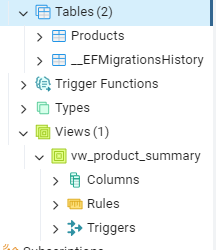
Step 8: Define program
using EfCoreViewDemo.Data;
using EfCoreViewDemo.Models;

using var context = new ApplicationDbContext();

context.Products.Add(new Product { Name = "Laptop", Price = 1000 });
context.Products.Add(new Product { Name = "Keyboard", Price = 100 });
context.Products.Add(new Product { Name = "Headphone", Price = 150 });
context.Products.Add(new Product { Name = "Web cam", Price = 200 });
context.Products.Add(new Product { Name = "Mouse", Price = 50 });

context.SaveChanges();

var summaries = context.ProductSummaries.ToList();

foreach (var item in summaries)
{
    Console.WriteLine($"{item.Name} - {item.Price}");
}
To summarize, I added 5 records manually. Later, I am calling ProductSummaries, which is a view.
Step 9: Run the project
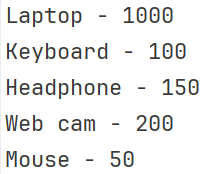
Manual migration allows you to automate view definition without breaking migration functionality. A naive approach is to write views directly in the database.
Step 10: Update the view
Let's say a requirement came, and we need to update the view.
Create an empty migration:
dotnet ef migrations add UpdateProductSummaryViewManual query in migration will look like this:
using Microsoft.EntityFrameworkCore.Migrations;

#nullable disable

namespace EfCoreViewDemo.Migrations
{
    /// <inheritdoc />
    public partial class UpdateProductSummaryView : Migration
    {
        /// <inheritdoc />
        protected override void Up(MigrationBuilder migrationBuilder)
        {
            migrationBuilder.Sql(@"
                DROP VIEW IF EXISTS vw_product_summary;

                CREATE VIEW vw_product_summary AS
                SELECT ""Name"", ""Price"", ""Price"" * 0.9 AS ""DiscountedPrice""
                FROM ""Products"";
            ");
        }

        /// <inheritdoc />
        protected override void Down(MigrationBuilder migrationBuilder)
        {
            migrationBuilder.Sql(@"
                DROP VIEW IF EXISTS vw_product_summary;

                CREATE VIEW vw_product_summary AS
                SELECT ""Name"", ""Price""
                FROM ""Products"";
            ");
        }
    }
}
Updating the model accordingly:
namespace EfCoreViewDemo.Models;

public class ProductSummary
{
    public string Name { get; set; } = string.Empty;
    public decimal Price { get; set; }
    public decimal DiscountedPrice { get; set; }
}
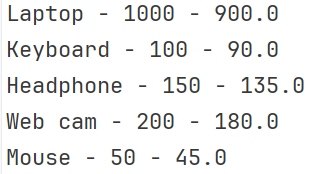
In Program.cs, the view call will become:
var summaries = context.ProductSummaries.ToList();

foreach (var item in summaries)
{
    Console.WriteLine($"{item.Name} - {item.Price} - {item.DiscountedPrice}");
}
Hence, the result
Conclusion
Database Views are great for enclosing complex logic as virtual tables. Developers often use it extensively in the application. However, views can make EF Core migration tracking tedious if not managed properly. I provided a solution in today's blog on how you can design views without harming migration.
Code: https://github.com/elmahio-blog/EfCoreViewDemo.git
elmah.io: Error logging and Uptime Monitoring for your web apps
This blog post is brought to you by elmah.io. elmah.io is error logging, uptime monitoring, deployment tracking, and service heartbeats for your .NET and JavaScript applications. Stop relying on your users to notify you when something is wrong or dig through hundreds of megabytes of log files spread across servers. With elmah.io, we store all of your log messages, notify you through popular channels like email, Slack, and Microsoft Teams, and help you fix errors fast.

See how we can help you monitor your website for crashes Monitor your website